Install the client, connect your organization and run your first cycle.
Each section states the client version and the date it was verified.
Parte 1 · Do zero à primeira entrega
Antes de começar
Client 1.0.0 · verificado em 20/09/2026
Este manual é um passo a passo. Se você seguir as seções na ordem, sai do zero e chega à primeira Pull Request aberta pelo Spec-Cycle, sem precisar pular de um lado para o outro.
O caminho completo
Conferir os requisitos (esta seção).
Criar e ativar a conta na plataforma.
Criar a chave da organização.
Instalar o client no seu computador.
Preparar o projeto e escolher o agente de IA.
Conectar o client à sua organização.
Selar a Foundation do projeto.
Criar a sua primeira volta.
Especificar: Discovery, Intent e Behavior.
Desenhar: Blueprint e Breakdown.
Entregar: Build, Quality e Learning.
Abrir a Pull Request da volta.
A Parte 2 vem depois: acompanhar as voltas na plataforma, convidar pessoas, os planos, a referência de comandos e a solução de problemas.
O que a sua máquina precisa ter
Python 3.10 ou superior, com o pip. É o que instala e roda o client.
Git. O Spec-Cycle guarda os artefatos de cada volta no repositório do seu projeto.
Um agente de IA para executar as fases: o Claude Code (recomendado) ou uma chave de API da Anthropic na variável de ambiente ANTHROPIC_API_KEY.
Para abrir Pull Requests pelo client, na seção 12: um token do GitHub na variável GITHUB_TOKEN.
Conferir o que você já tem
Cada comando abaixo mostra a versão instalada. Se algum não for reconhecido, instale a ferramenta antes de continuar.
python --version
git --version
claude --version
O último só funciona se o Claude Code estiver instalado. Se você for usar a chave de API da Anthropic no lugar dele, pode ignorá-lo.
Sobre este manual
Os comandos foram executados no Windows 11 com PowerShell, no client 1.0.0, e a saída mostrada é a que apareceu de verdade. No macOS e no Linux, os comandos scycle são os mesmos; muda apenas a forma de criar e ativar o ambiente virtual do Python, indicada na seção 4.
Criar e ativar a conta
Client 1.0.0 · verificado em 20/09/2026
A plataforma fica em app.spec-cycle.com. É nela que você cria a conta, cria a chave que conecta o client e acompanha as voltas depois. Cada organização é um tenant: reúne as pessoas, as chaves e as voltas.
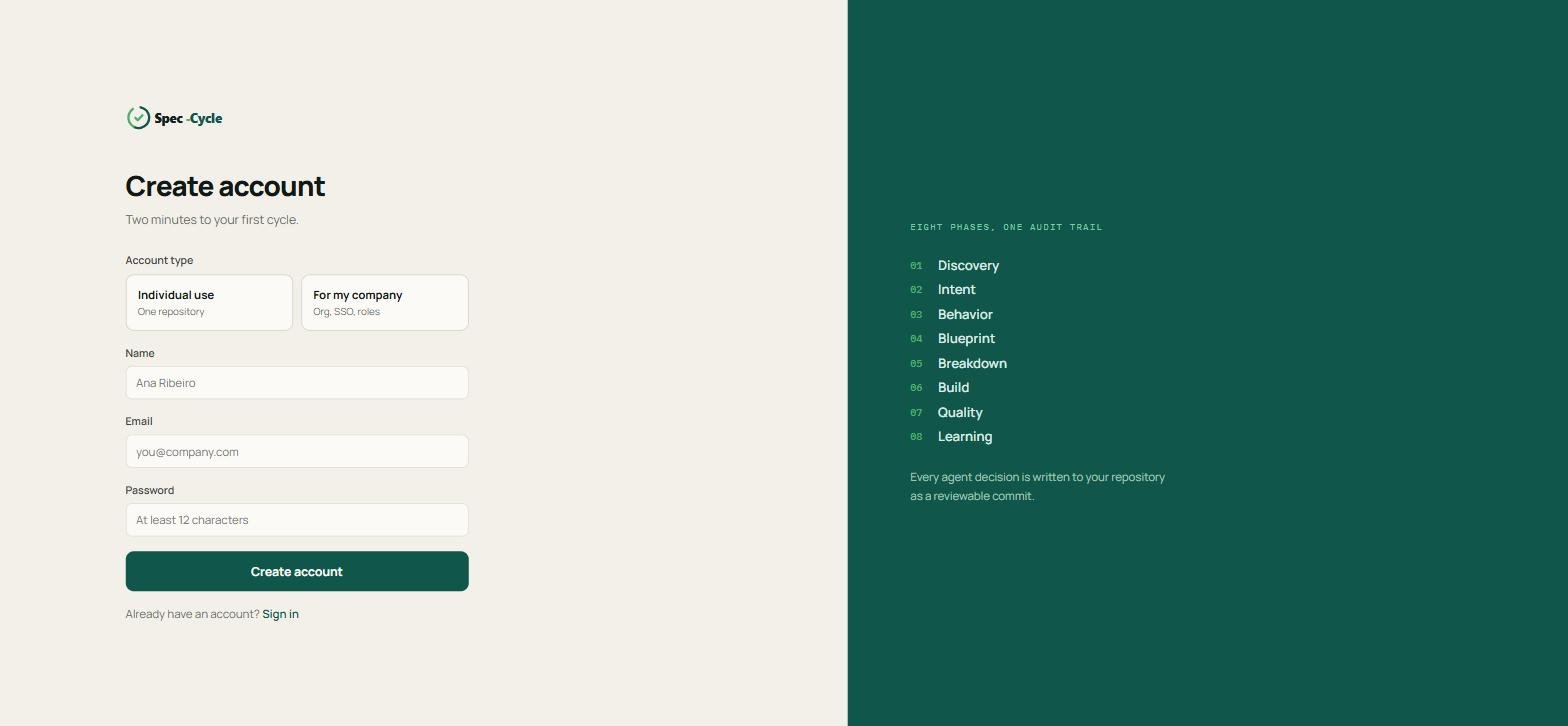
1. Criar a conta
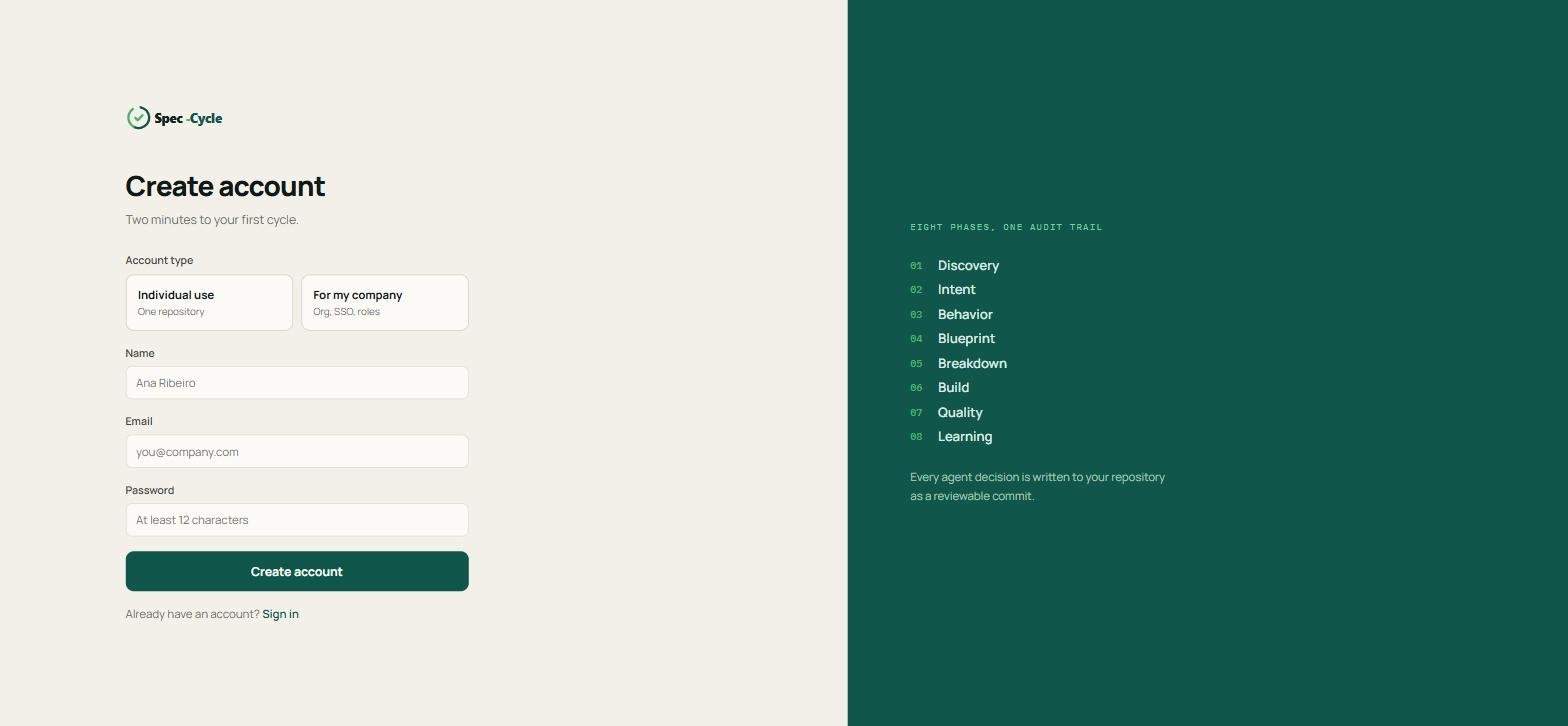
Abra app.spec-cycle.com. A primeira tela é Sign in; clique em Create account.
Em Account type, escolha Individual use, para um repositório, ou For my company, para uma organização com papéis.
Preencha Name, Email e Password. A senha precisa de pelo menos 12 caracteres.
Clique em Create account.
2. Ativar a conta
A plataforma envia um código de confirmação para o e-mail informado. Informe esse código para ativar a conta. Sem essa confirmação o primeiro acesso não acontece.
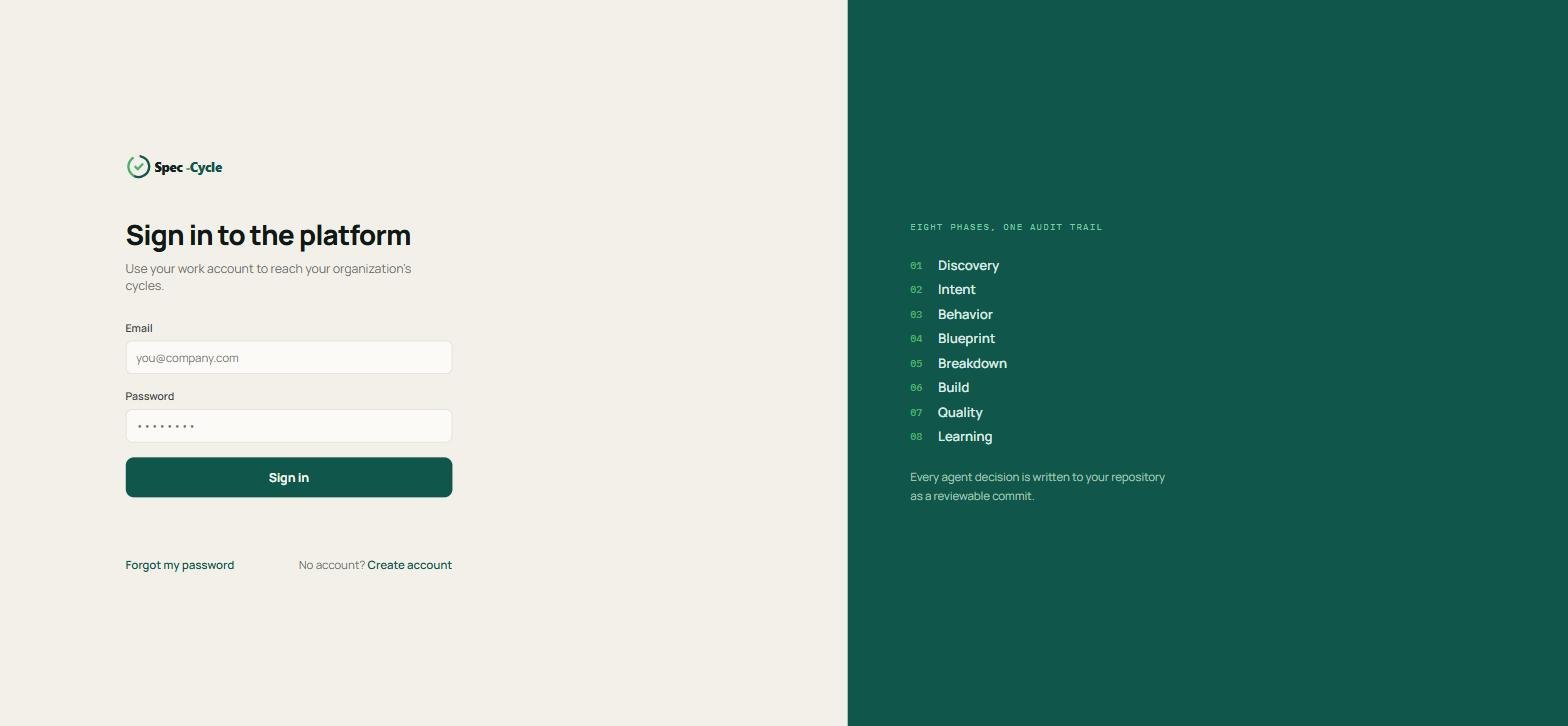
3. Entrar
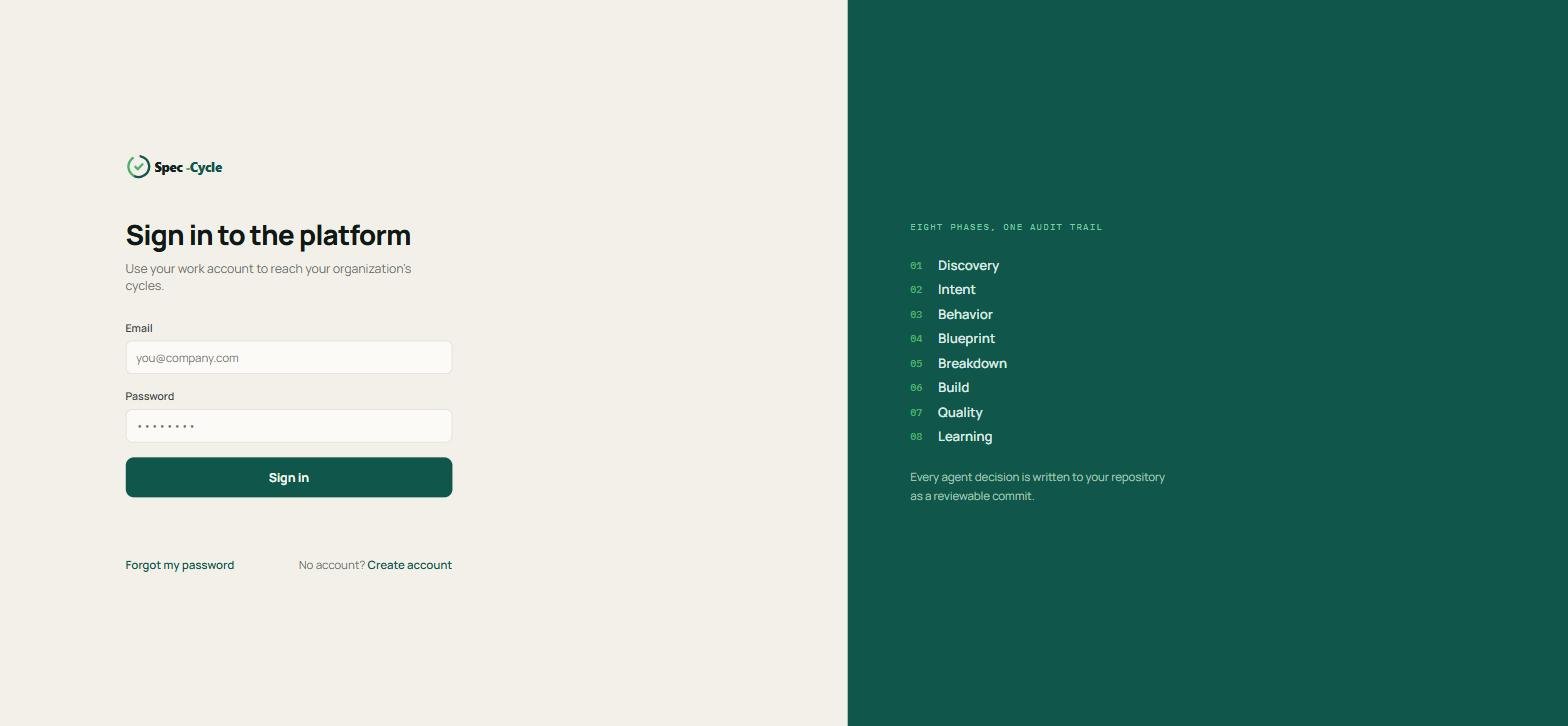
Com a conta ativa, entre pela tela Sign in to the platform, com o e-mail e a senha. O link Forgot my password leva à recuperação da senha.
Na próxima seção você cria, dentro da plataforma, a chave que conecta o client à sua organização.
Criar a chave da organização
Client 1.0.0 · verificado em 20/09/2026
A chave é o que liga o client à sua organização. Sem ela o client não cria nem executa voltas. Você cria a chave agora, na plataforma, e a usa na seção 6.
Criar
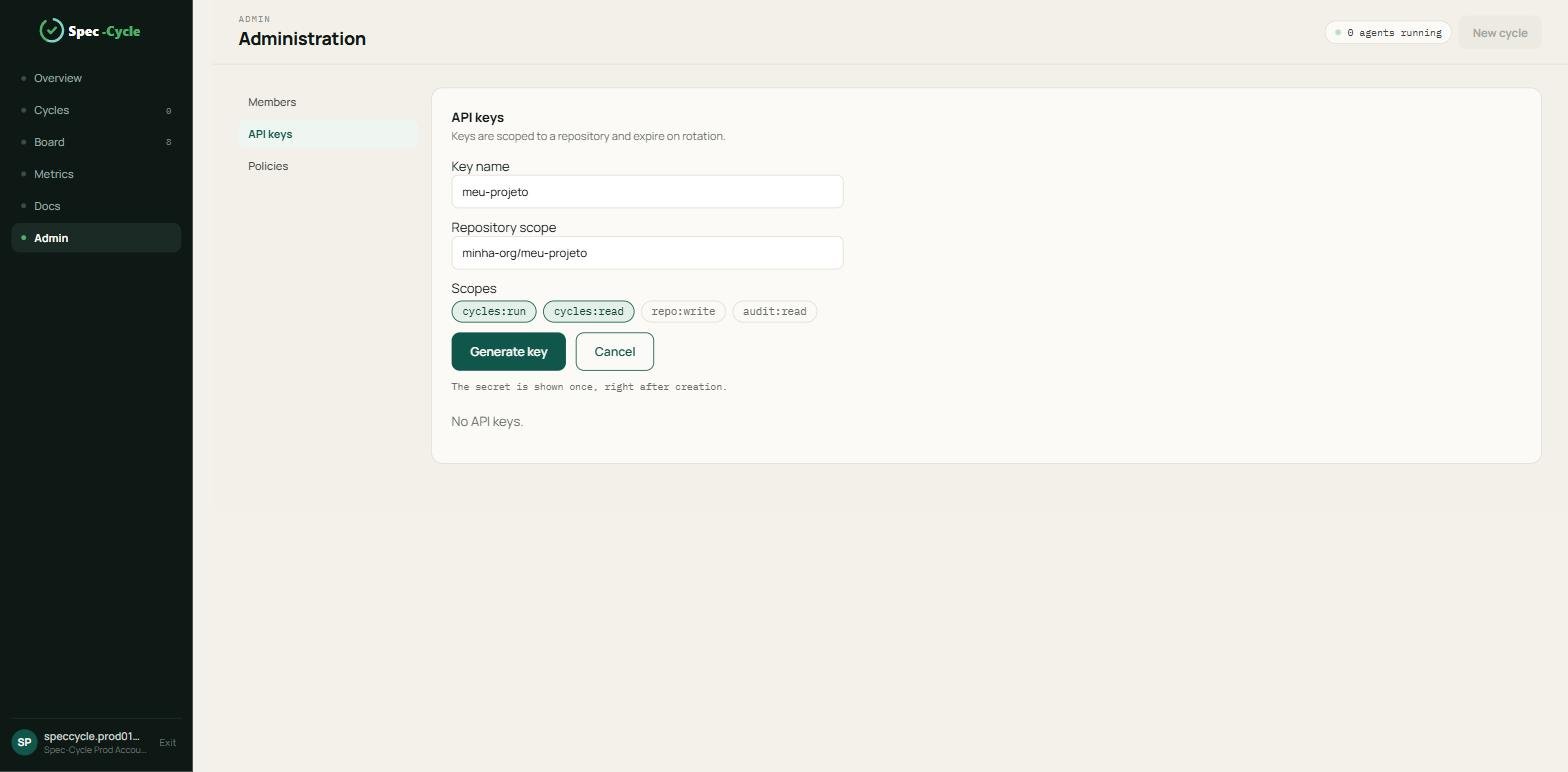
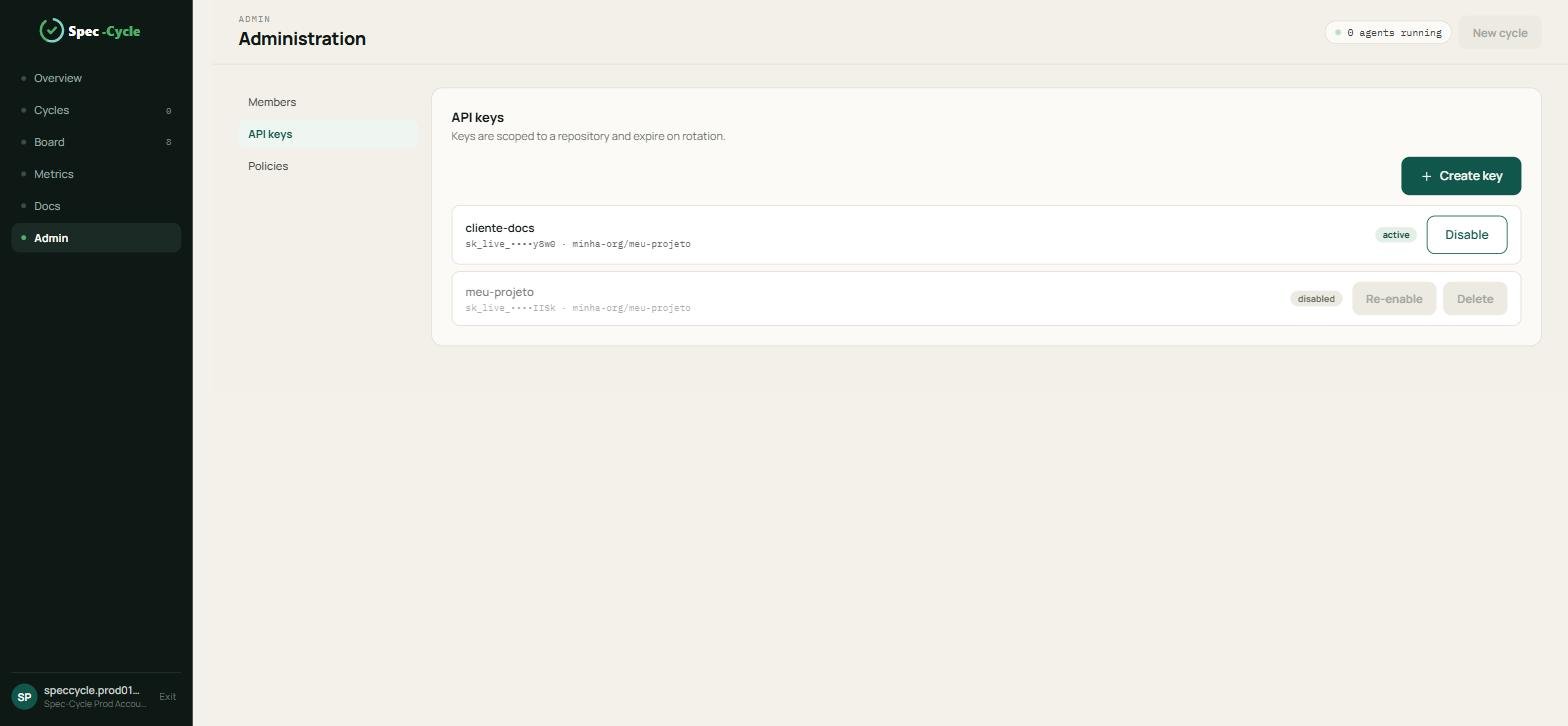
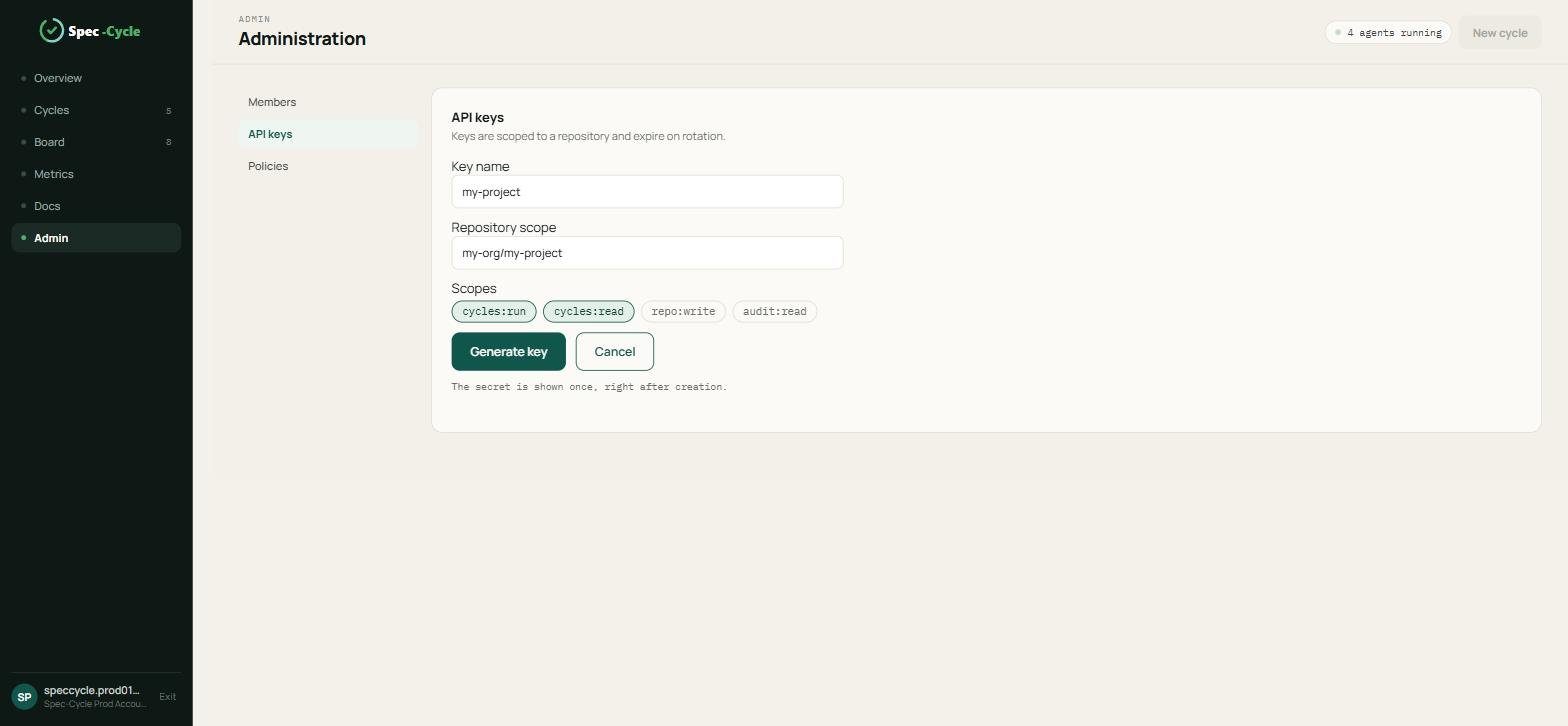
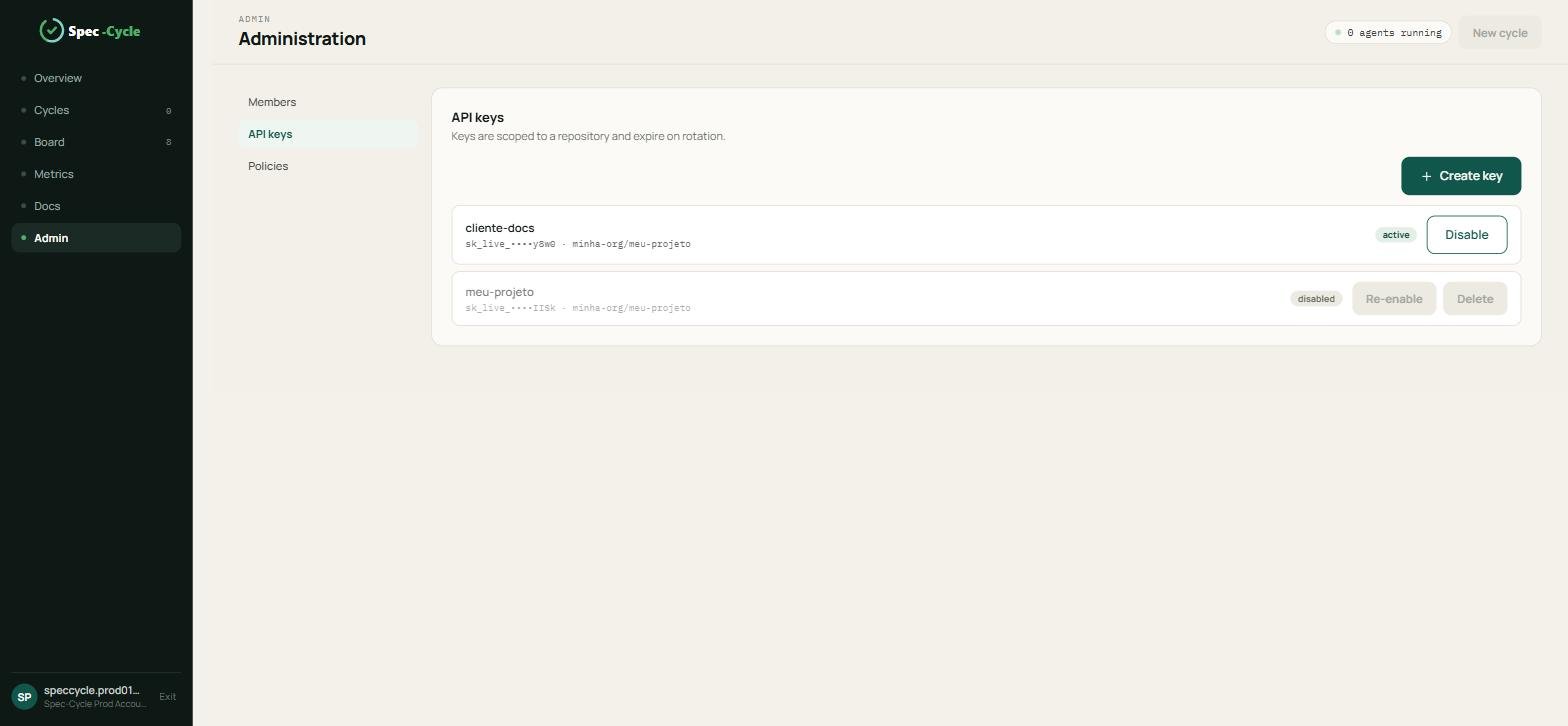
Na plataforma, abra Admin no menu e depois a aba API keys.
Clique em Create key.
Preencha Key name com um nome para você reconhecer a chave depois, por exemplo meu-projeto.
Preencha Repository scope com o repositório em que essa chave pode trabalhar, por exemplo minha-org/meu-projeto.
Escolha os escopos. Para o percurso deste manual bastam cycles:run, que executa as voltas, e cycles:read, que as lê. Existem também repo:write e audit:read.
Clique em Generate key.
Copiar o segredo
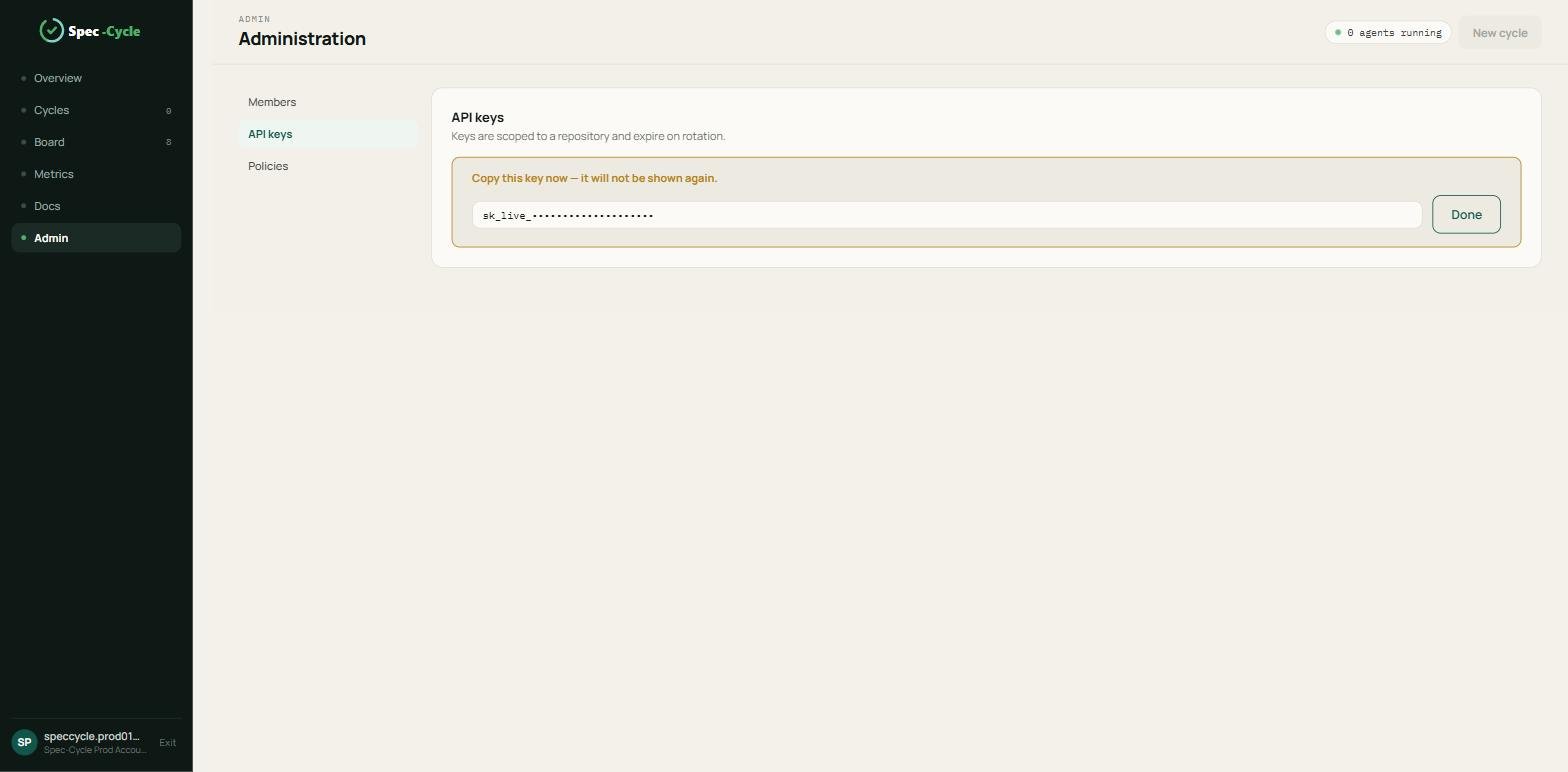
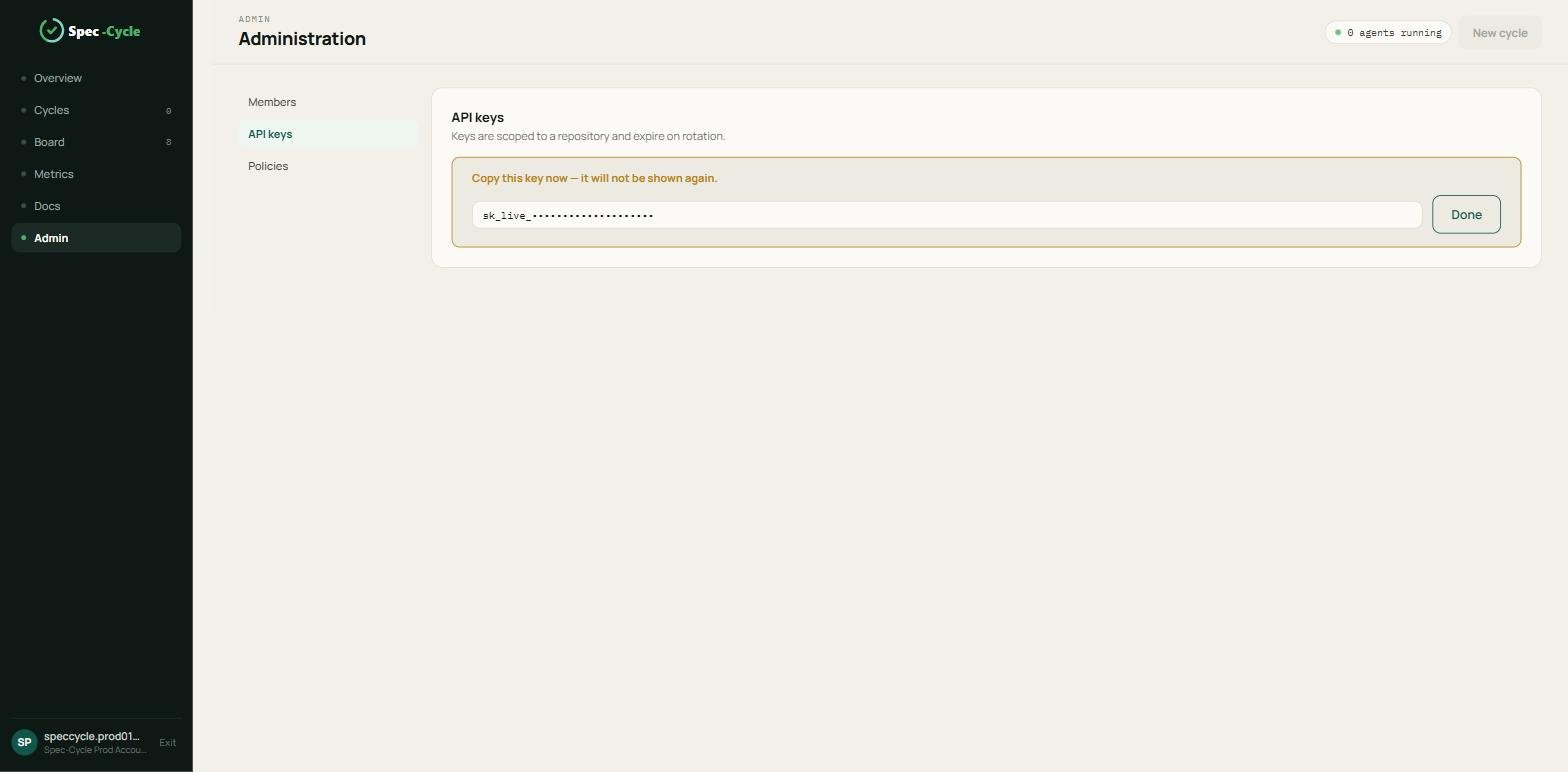
O segredo aparece uma única vez, logo depois da criação, com o aviso Copy this key now — it will not be shown again. Copie-o e guarde num gerenciador de senhas antes de clicar em Done.
Conferir e revogar
A lista mostra o nome, o final da chave (sk_live_ e os últimos quatro caracteres), o repositório e o estado.
Disable desativa a chave na hora, e quem estiver conectado com ela perde a sessão.
Uma chave desativada pode voltar com Re-enable ou ser removida com Delete.
Guarde o segredo à mão: ele é pedido na seção 6.
Instalar o client
Client 1.0.0 · verificado em 20/09/2026
O client é distribuído no PyPI como o pacote speccycle e instala o comando scycle, que você usa em todos os passos seguintes. Recomendamos instalá-lo em um ambiente virtual do Python.
Instalar
Crie o ambiente virtual, ative-o e instale o pacote:
Ao terminar, o pip confirma os pacotes instalados, com o speccycle entre eles.
Conferir a versão
scycle --version
A saída mostra Spec-Cycle 1.0.0 e o lema Specify. Approve. Advance. Este manual descreve a versão 1.0.0.
Ver a ajuda
scycle --help
scycle help
O scycle --help lista os comandos em uma linha cada. O scycle help mostra a documentação completa de uso: as oito fases, a sessão com a plataforma, a configuração do agente de IA e um início rápido.
Atualizar depois
Para instalar uma versão mais nova do client:
pip install --upgrade speccycle
Depois de atualizar o pacote, rode scycle update-version dentro de cada projeto para atualizar os arquivos do Spec-Cycle nele, como descrito na seção 5.
Preparar o projeto e o agente de IA
Client 1.0.0 · verificado em 20/09/2026
Agora você prepara a pasta onde as voltas vão acontecer e escolhe o agente de IA que executa as fases.
Escolher o agente de IA
Os agentes rodam na sua máquina, não na plataforma. Você precisa de um destes dois:
Claude Code, recomendado. As sessões usam a instância do Claude Code já autenticada no computador, e nenhuma chave adicional é necessária.
Chave de API da Anthropic, na variável de ambiente ANTHROPIC_API_KEY. É usada quando o Claude Code não está instalado.
Criar o projeto
Crie a pasta, inicialize o Git e inicialize o Spec-Cycle nela:
mkdir meu-projeto
cd meu-projeto
git init
scycle init --here
O scycle init --here pergunta qual assistente configurar: 1 Claude Code, 2 Antigravity CLI ou 3 ambos, que é o padrão. Para responder sem a pergunta, use --llm claude, --llm antigravity ou --llm both. Para criar a pasta e inicializar de uma vez, informe o nome dela no lugar de --here.
Ao terminar, o comando informa projeto Spec-Cycle inicializado e aponta o próximo passo.
O que o init cria
Pasta
Para que serve
.speccycle/
Agentes, workflows, templates, checkpoints e o conhecimento do projeto. O project.json guarda o identificador e o nome.
cycles/
Onde cada volta guarda os seus artefatos.
.claude/
Os comandos /scycle:... e os agentes que o Claude Code usa. Conforme a sua escolha, também .antigravity/ e .agents/.
O init também acrescenta ao .gitignore as linhas do estado transitório: fila de eventos, logs e locks.
Conectar o agente de IA ao projeto
Os comandos /scycle:... ficam disponíveis quando você abre o projeto no assistente. Com o Claude Code, abra o Claude Code na pasta do projeto e digite /scycle: para ver a lista.
O agente só executa as fases se a máquina tiver sessão com a plataforma, que é o que você faz na próxima seção. Sem sessão ele para e pede o login.
Manter os arquivos atualizados
Quando você instalar uma versão mais nova do client, atualize os arquivos do Spec-Cycle deste projeto:
scycle update-version
O comando atualiza agentes, workflows, templates, checkpoints e a pasta de comandos do assistente, e informa a versão instalada.
Conectar o client à sua organização
Client 1.0.0 · verificado em 20/09/2026
O client precisa de uma sessão com a plataforma para criar, alterar e executar voltas. Você conecta a máquina com a chave criada na seção 3. Há dois caminhos, e o mais simples é o portal.
Pelo portal do client
O client traz um portal que roda na sua máquina. Dentro da pasta do projeto:
scycle start
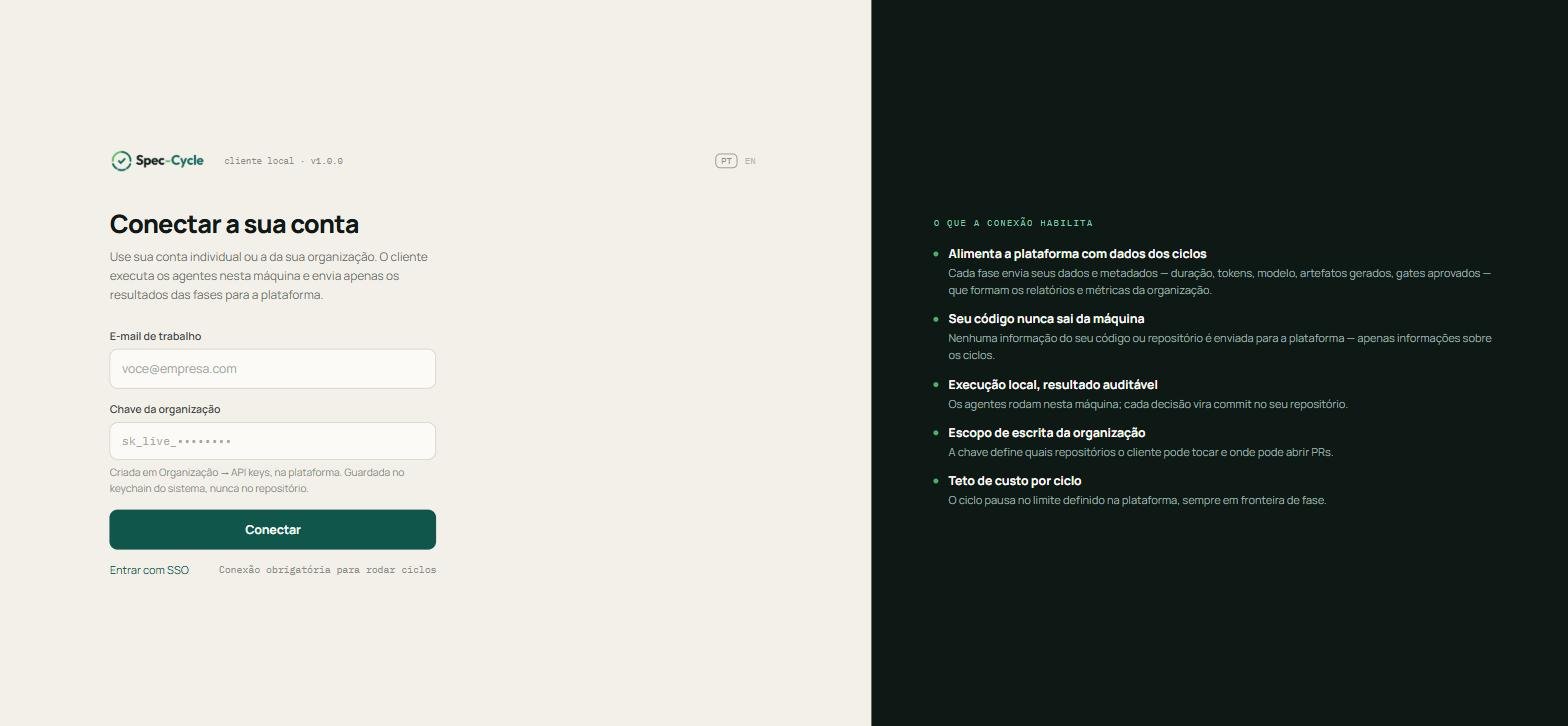
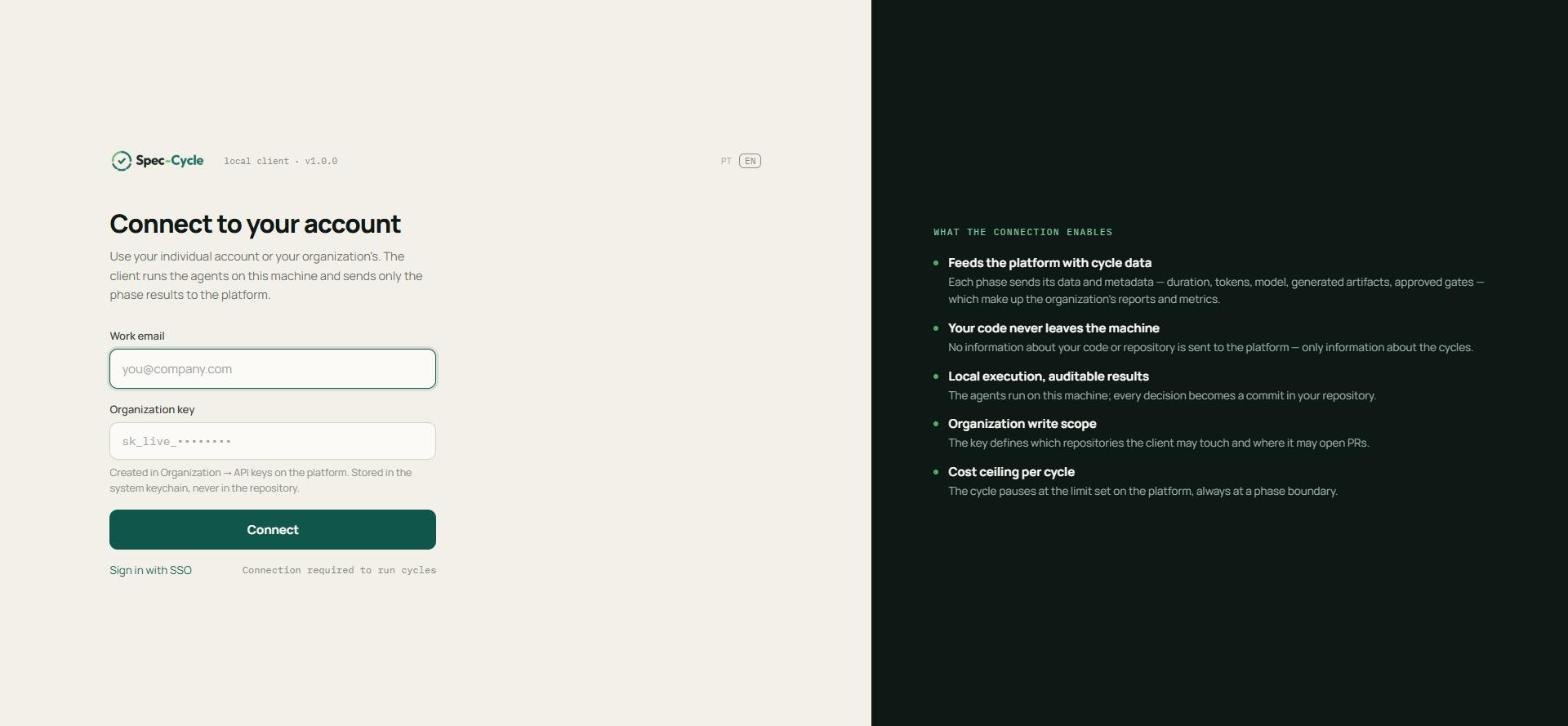
O portal abre em http://localhost:8473. Para usar outra porta, informe --port e o número. Enquanto o client não estiver conectado, o portal mostra a tela Conectar a sua conta.
Preencha E-mail de trabalho com o e-mail da sua conta e Chave da organização com o segredo que você copiou na seção 3, e clique em Conectar.
O portal está em português ou inglês conforme o seletor PT/EN no canto esquerdo.
O que a conexão habilita
A tela lista cinco pontos. Quatro descrevem o que a conexão faz hoje:
Os agentes rodam nesta máquina. Só o resultado das fases vai para a plataforma.
O seu código nunca sai da máquina. Nenhuma informação do seu código ou repositório é enviada, apenas informações sobre os ciclos.
Cada decisão vira commit no seu repositório, auditável.
A chave define o escopo de escrita: quais repositórios o client pode tocar e onde pode abrir PRs.
Pelo terminal
Se preferir não abrir o portal:
scycle login
O comando pergunta o e-mail de trabalho e a chave da organização. A chave não aparece na tela enquanto você digita. Se preferir, informe os dois valores nas opções --email e --key.
Quando a chave é aceita, ele responde conectado como, com o seu e-mail, o nome da organização e onde a chave foi guardada.
Conferir a sessão
scycle doctor
O doctor mostra se a sessão está ativa, a conta, a organização, os últimos quatro caracteres da chave, o agente de IA detectado e o envio de eventos. Cada linha aparece como [OK] ou [XX].
A chave fica no cofre do sistema operacional, no Windows o DPAPI, e um perfil local fica na pasta de configuração do usuário, fora de qualquer repositório. A variável SPEC_CYCLE_HOME muda a pasta desse perfil.
Sem sessão, código 3
Os comandos que criam, alteram ou executam algo terminam com o código de saída 3 e a mensagem Cliente desconectado da plataforma. O mesmo vale para os comandos /scycle:... no agente de IA, que param antes de fazer qualquer coisa.
Encerrar
scycle logout
O logout apaga a chave do cofre e o perfil local desta máquina. Ele não revoga a chave na plataforma; para isso use Disable, na seção 3.
Selar a Foundation
Client 1.0.0 · verificado em 20/09/2026
A Foundation é a fase zero: as decisões de stack e os princípios que valem para o projeto inteiro. Ela é executada uma única vez por projeto, antes da primeira volta.
Por que ela importa
Tudo o que os agentes fazem depois passa por ela:
Cada agente lê a Foundation antes de decidir qualquer coisa. É ela que diz em que linguagem escrever, que arquitetura seguir e como testar.
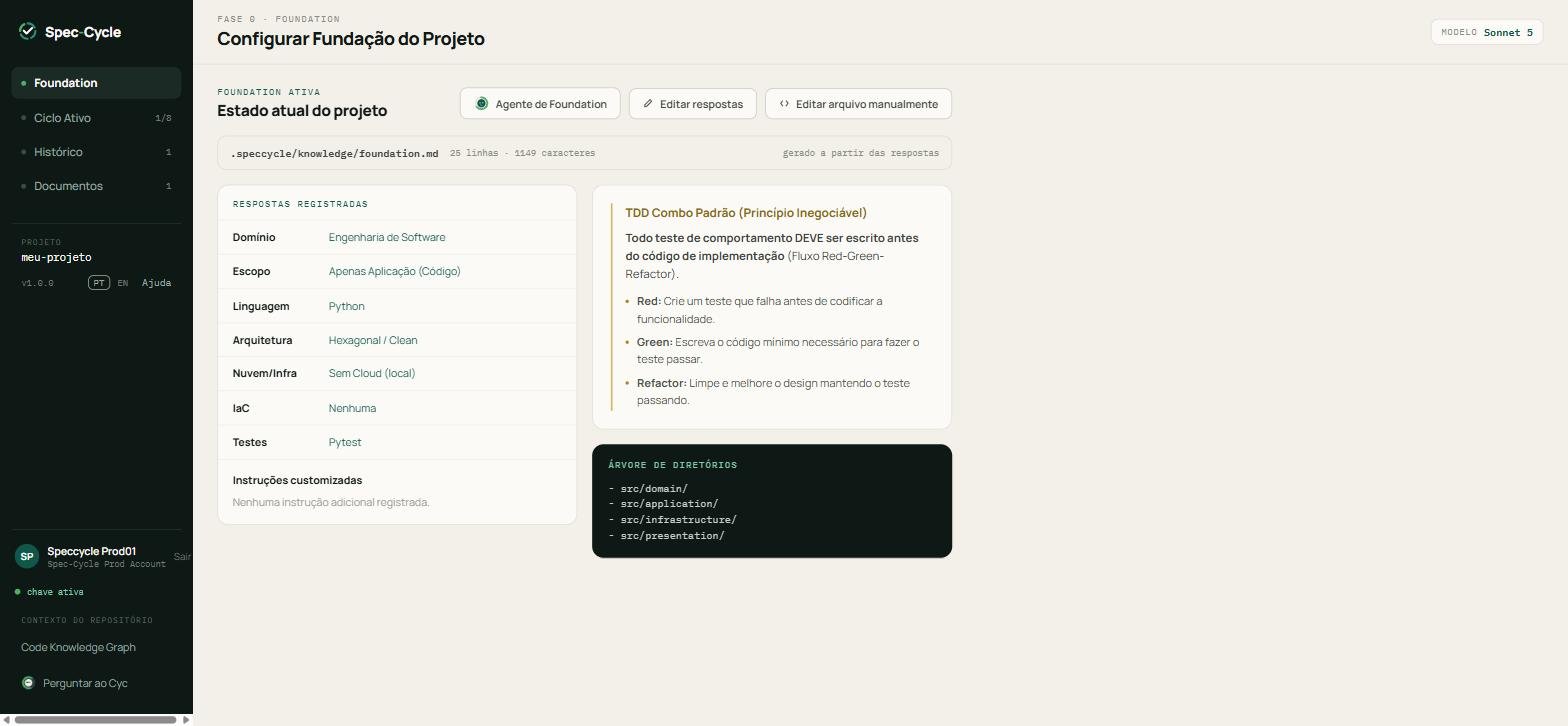
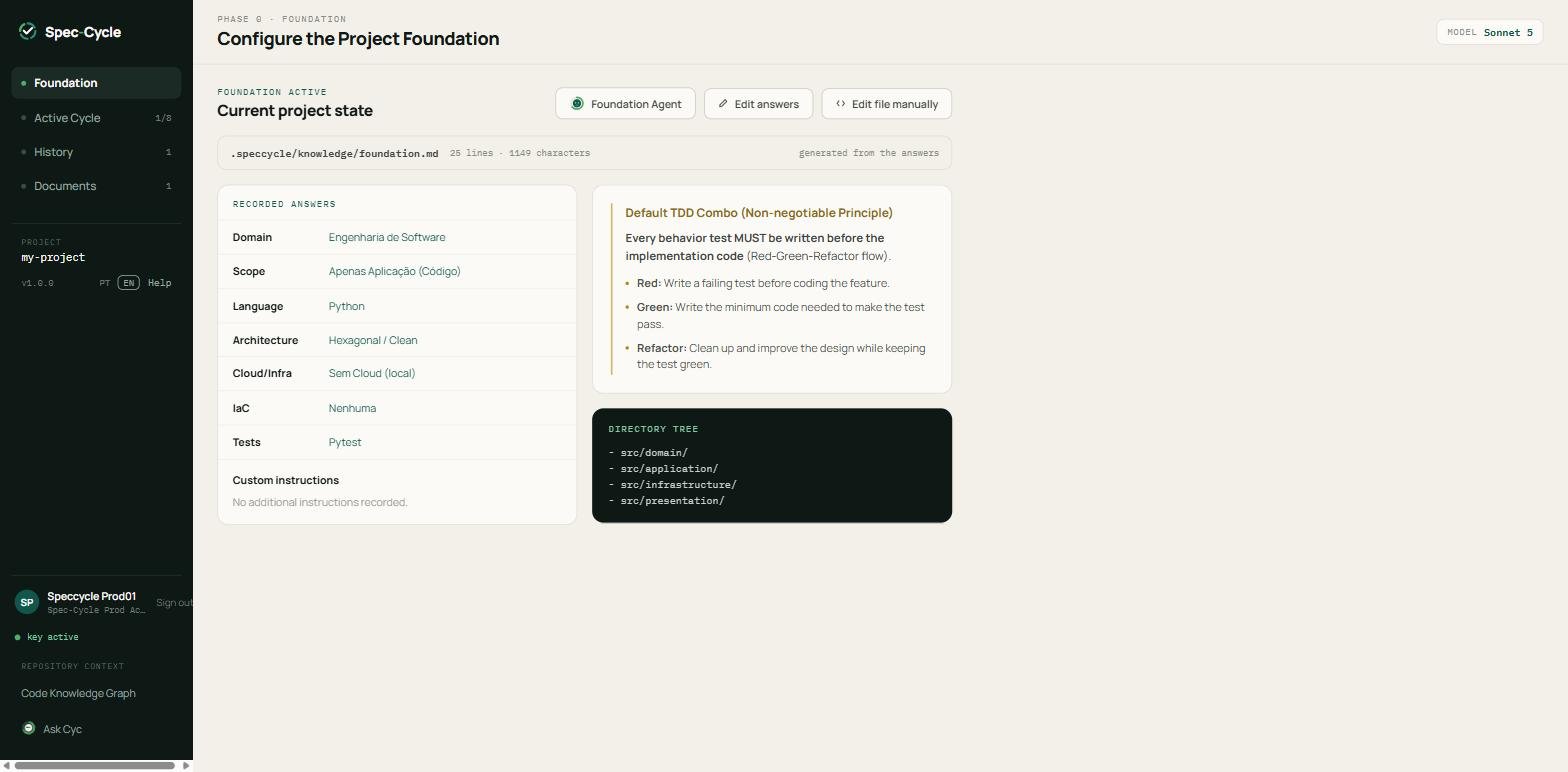
Ela grava princípios inegociáveis. No exemplo abaixo, o TDD Combo Padrão exige que todo teste de comportamento seja escrito antes do código de implementação, no fluxo Red-Green-Refactor.
Ela fixa a árvore de diretórios que o Build vai respeitar.
Enquanto ela não estiver selada, a primeira fase não começa. Se você tentar, o Spec-Cycle bloqueia com a mensagem a Foundation ainda não foi selada.
Sem Foundation, cada volta recomeçaria essas decisões do zero, e duas voltas do mesmo projeto poderiam sair com arquiteturas diferentes.
Selar pelo terminal
scycle foundation
O assistente pergunta primeiro o método:
1 Expressa, rápida, para projetos de um repositório. São duas perguntas: a linguagem principal, entre Python, TypeScript / JavaScript, Go ou outra, e a arquitetura, entre Hexagonal / Clean, Monolito Modular ou MVC / padrão da stack.
2 Completa, passo a passo, para microsserviços, cloud e infraestrutura como código.
Ao final, ele confirma que a configuração base foi criada e grava o resultado em .speccycle/knowledge/foundation.md.
Selar pelo portal
No portal do client, a área Foundation mostra o estado atual do projeto: as respostas registradas, os princípios gerados e a árvore de diretórios.
Três botões, no alto:
Botão
O que faz
Agente de Foundation
Deixa o agente de IA conduzir a conversa e preencher as respostas.
Editar respostas
Abre as mesmas perguntas do assistente para você mudar uma resposta.
Editar arquivo manualmente
Abre o foundation.md para edição direta.
O campo Instruções customizadas é onde entram convenções próprias, preferências de estilo, pacotes aprovados e regras de segurança que todo agente deve seguir.
Dar contexto do repositório aos agentes
Com a Foundation selada, mapeie o repositório para o grafo de conhecimento:
scycle index
O comando pergunta qual modelo de IA usar no mapeamento, entre Sonnet, Haiku, Opus, Fable e Gemini. Para escolher sem a pergunta, use --model, por exemplo --model sonnet; sem terminal interativo ele usa o Sonnet. Ao terminar, informa que o Grafo de Conhecimento de Código foi atualizado, e o resultado fica em .speccycle/knowledge/.
O grafo é o que o portal mostra em Contexto do repositório, e é dele que os agentes tiram o que já existe no seu código.
Criar a sua primeira volta
Client 1.0.0 · verificado em 20/09/2026
Uma volta é o ciclo completo de uma funcionalidade, do problema à lição aprendida. Ela percorre oito fases, e nenhuma começa sem a anterior aprovada.
Neste manual a volta de exemplo é um botão de contato na página inicial.
Criar pelo terminal
scycle new "Botão de contato na página inicial"
O comando responde nova volta criada com o caminho da pasta, e aponta a Discovery como próximo passo. A pasta fica em cycles/, numerada: cycles/001-botao-de-contato-na-pagina-inicial.
Duas opções úteis:
Opção
Para que serve
--hotfix
Cria um ajuste rápido, com menos etapas que a volta completa.
--desc
Registra uma descrição junto da volta, enviada à plataforma com o primeiro evento.
Criar pelo portal
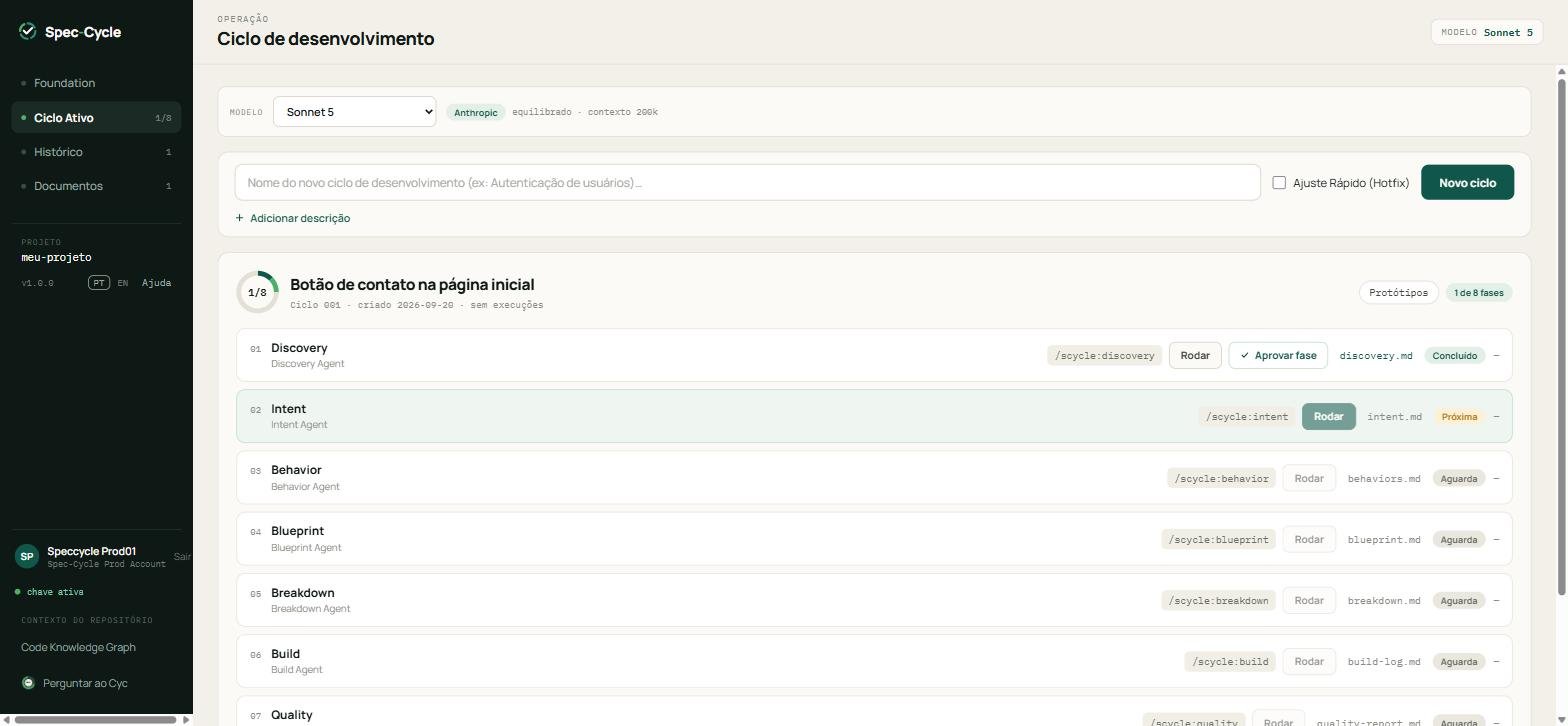
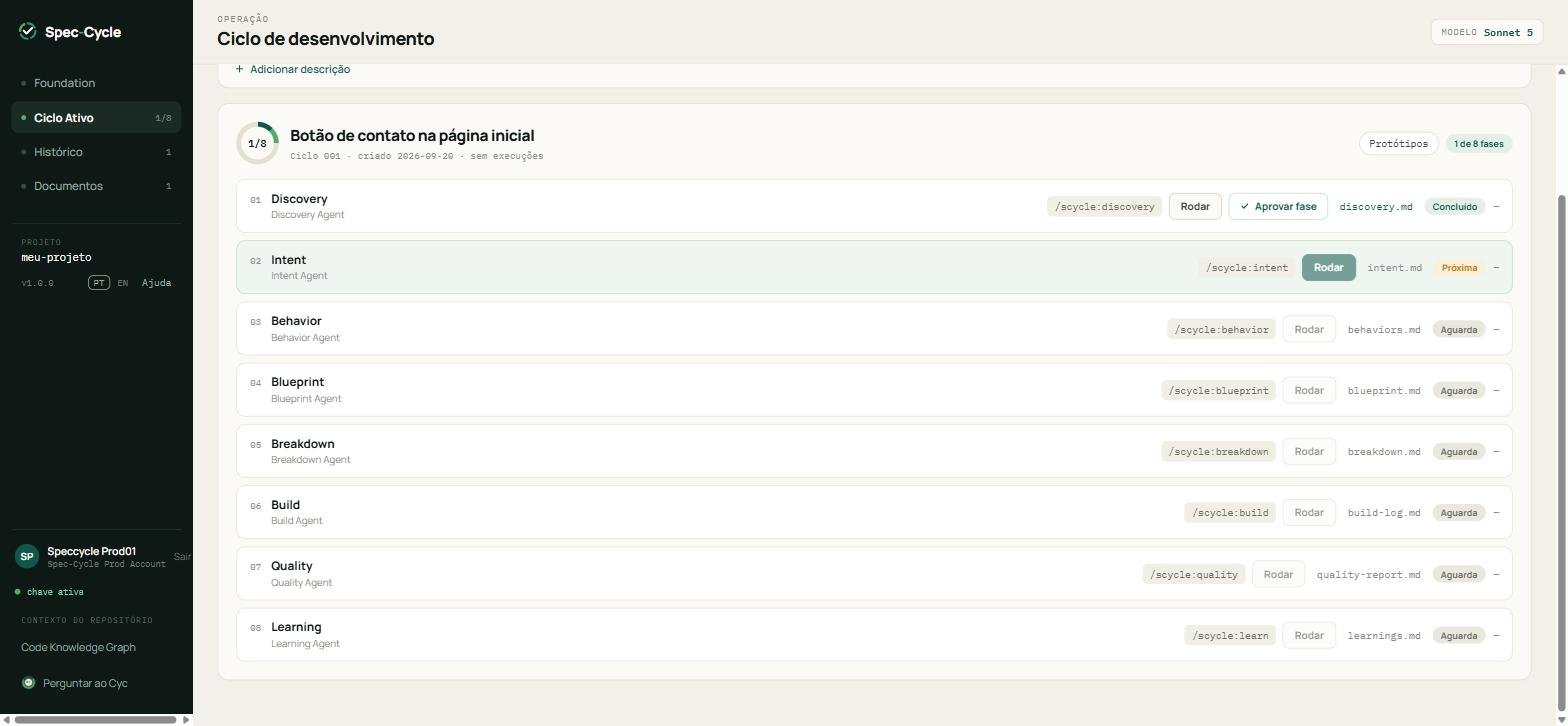
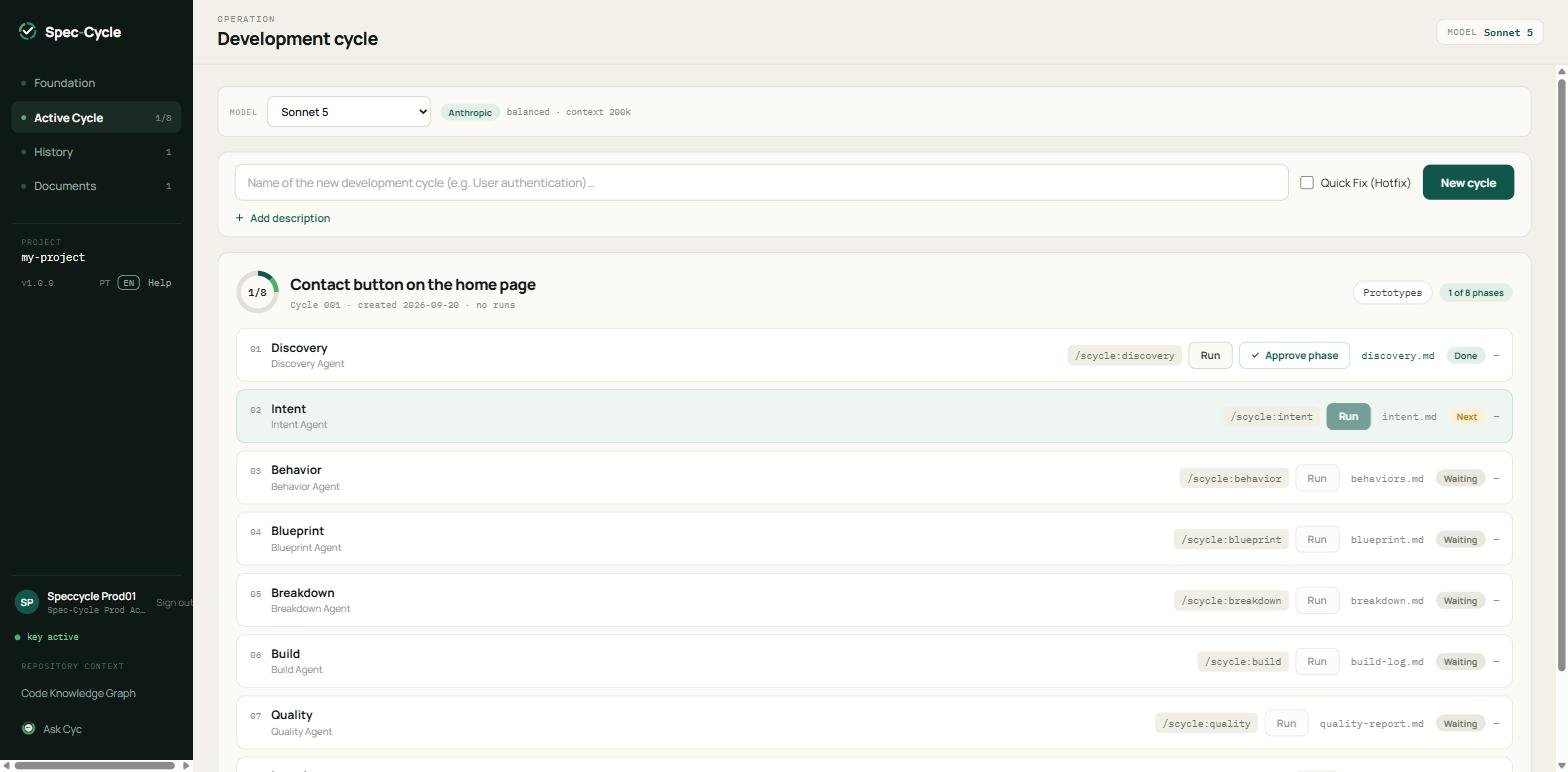
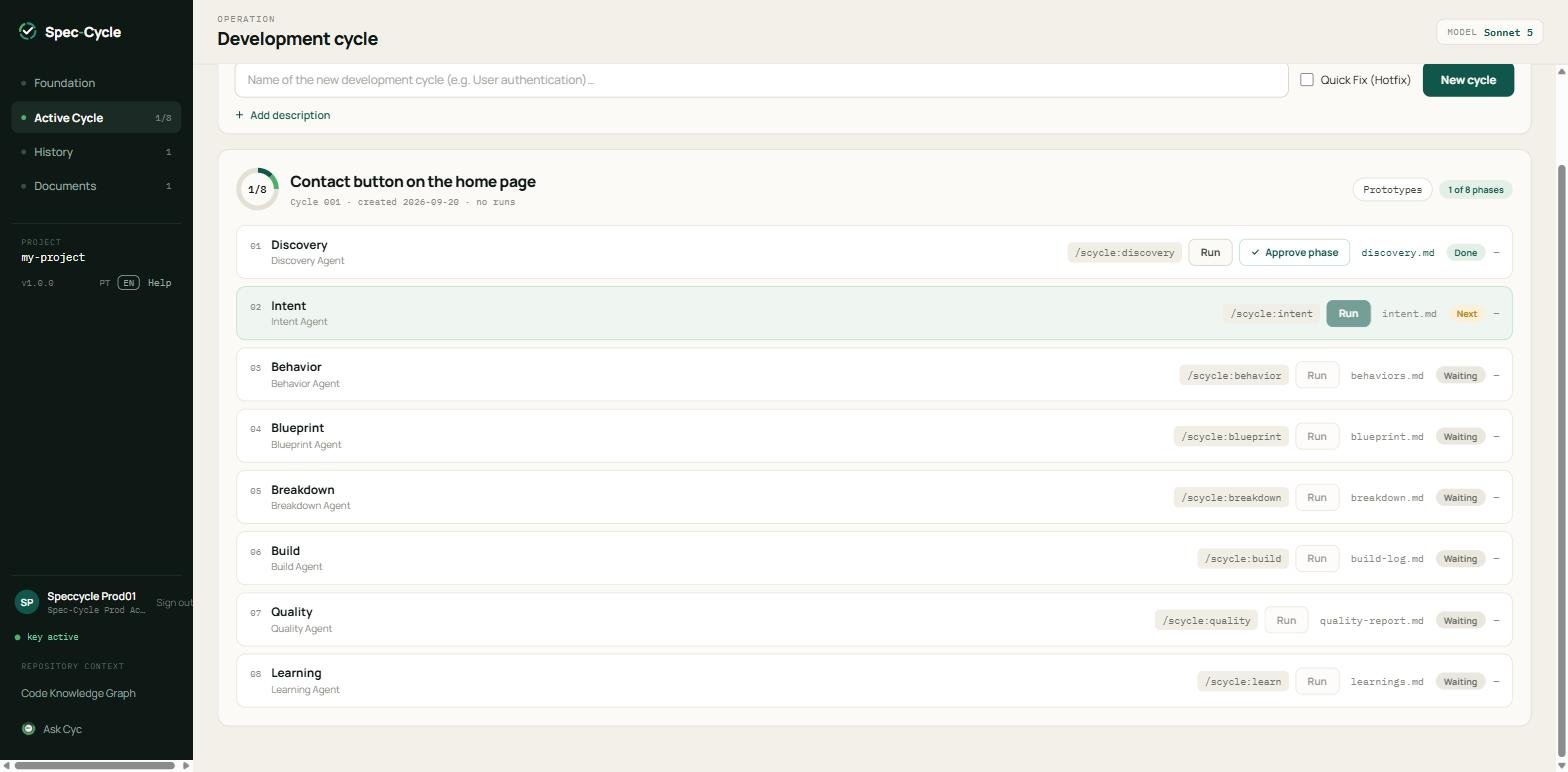
No portal, a área Ciclo Ativo tem o campo do nome, a caixa Ajuste Rápido (Hotfix) e o botão Novo ciclo. O link Adicionar descrição abre o campo da descrição.
No alto fica o seletor de Modelo, que escolhe qual modelo de IA os agentes vão usar nesta máquina. O exemplo mostra o Sonnet 5, com o fornecedor e o tamanho do contexto ao lado.
O que você vê depois
A volta aparece como um cartão, com o nome, o número, a data e um contador de fases concluídas. Abaixo, uma linha por fase, sempre na mesma ordem:
Coluna
O que é
Número e nome
A fase, de 01 Discovery a 08 Learning, e o agente que a executa.
Comando
O comando /scycle:... que inicia a fase no agente de IA.
Rodar
Inicia a fase pelo portal, sem sair para o assistente.
Artefato
O arquivo que a fase produz, por exemplo discovery.md.
Estado
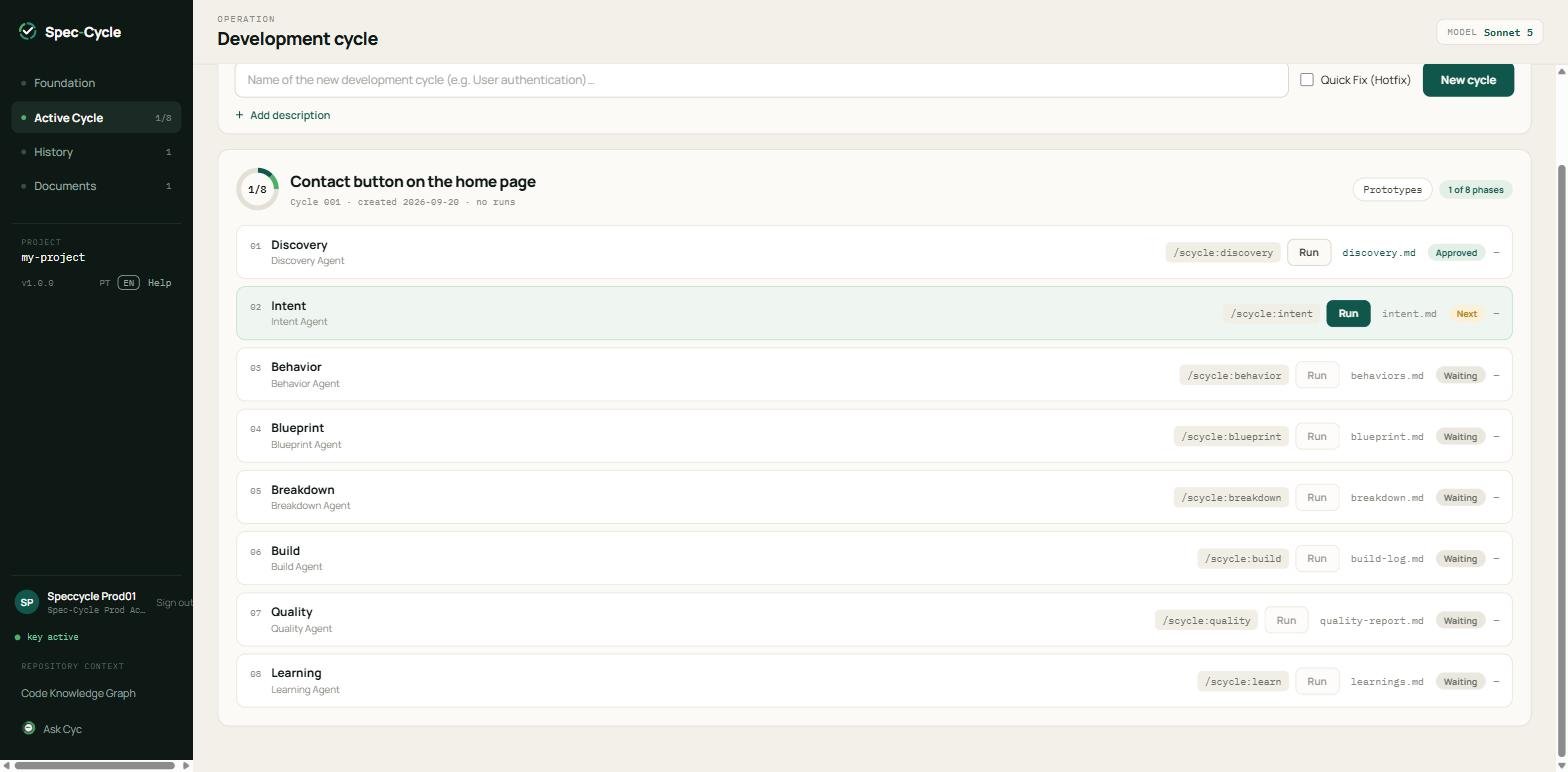
Próxima na que pode começar, Aguarda nas que dependem de outra, Concluído na que terminou.
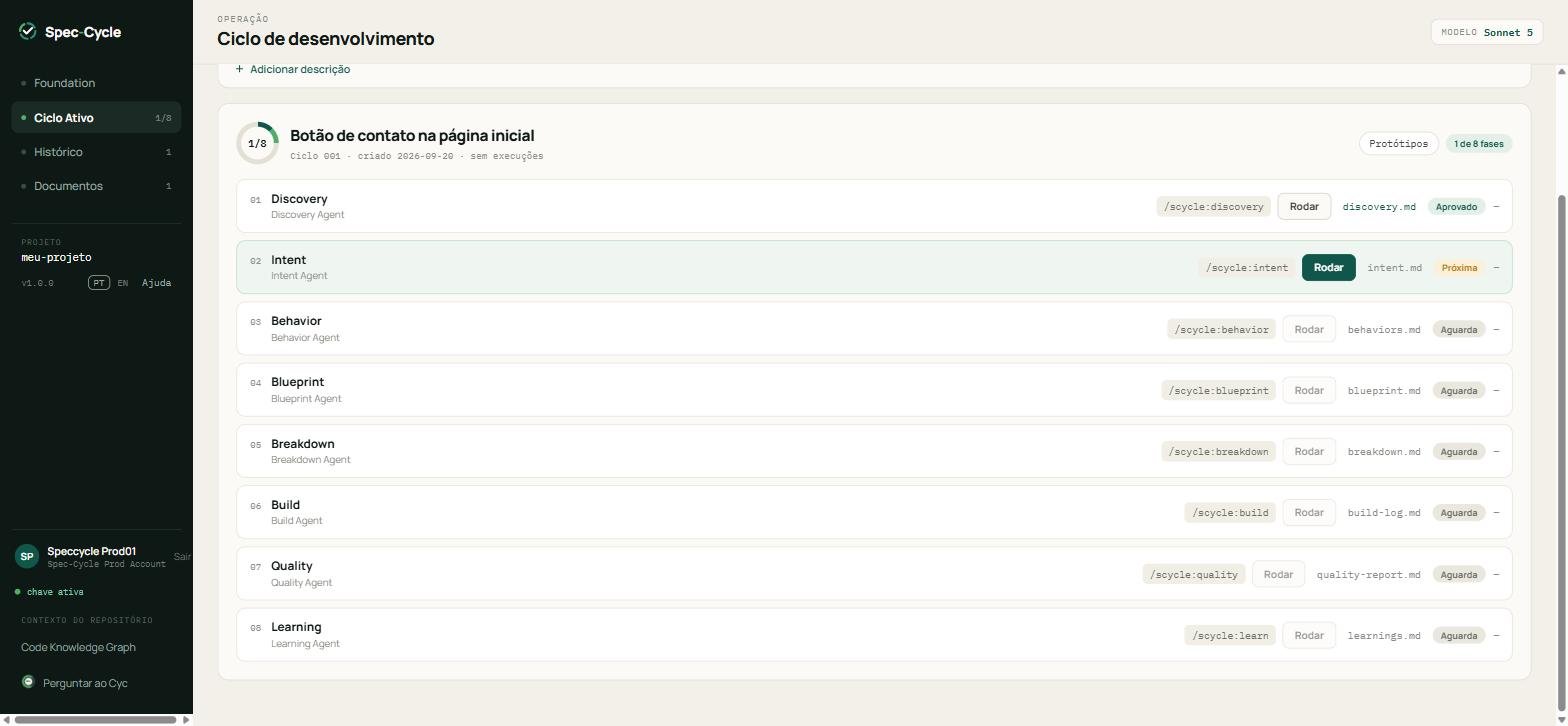
Só a fase da vez tem o Rodar ativo. É assim que o Spec-Cycle garante uma fase de cada vez.
Nas próximas três seções você percorre as oito fases.
Especificar: Discovery, Intent e Behavior
Client 1.0.0 · verificado em 20/09/2026
As três primeiras fases respondem o que será feito e por quê, sem decidir tecnologia. É aqui que o Spec-Cycle evita a maior fonte de retrabalho: começar a codar antes de o problema estar claro.
O laço que se repete em toda fase
Todas as oito fases seguem o mesmo laço:
Iniciar. Clique em Rodar na linha da fase, no portal, ou digite o comando /scycle:... no agente de IA, dentro do projeto.
Conversar. O agente faz perguntas quando o pedido é ambíguo e para até você responder. Responder mal aqui custa caro depois.
Ler o artefato. A fase grava um arquivo na pasta da volta. É esse arquivo, e não o chat, que vale.
Aprovar. Se o artefato estiver bom, aprove. Se não, peça ajustes e rode de novo.
Como aprovar
No portal, quando a fase termina, o estado vira Concluído e um botão Aprovar fase aparece na linha, ao lado do Rodar. Clique nele.
Depois de aprovada, a linha passa a Aprovado e a fase seguinte fica liberada, com o Rodar ativo.
Quem preferir o terminal pode usar python -m speccycle.gates approve <fase> dentro do projeto.
Por que aprovar importa
A aprovação não é burocracia, é o mecanismo central do Spec-Cycle:
Ela destrava a fase seguinte. Sem a aprovação, o Rodar da próxima fase continua desligado e o agente de IA se recusa a avançar.
Ela é o seu ponto de controle. O agente propõe; quem decide é você. Aprovar é dizer "este documento representa o que eu quero".
Ela fica registrada. A aprovação é gravada na pasta da volta, com quem aprovou e quando, e vira um commit no seu repositório. Meses depois dá para responder por que o projeto seguiu determinado caminho.
Ela alimenta a plataforma. Cada fase aprovada vira um evento, e é disso que saem o andamento e as métricas da seção 13.
01 · Discovery
O que é: o entendimento do problema, antes de qualquer solução. O agente investiga o contexto, pesquisa e traz o que descobriu.
Como iniciar:/scycle:discovery ou o Rodar da linha 01.
Resultado esperado: o arquivo discovery.md na pasta da volta, com o problema, o contexto e as restrições, a pesquisa, os riscos e incógnitas, e uma recomendação.
Antes de aprovar, confira: o problema descrito é mesmo o seu? As restrições estão corretas? A recomendação faz sentido? Se o agente perguntou algo e você respondeu por alto, é aqui que isso aparece.
02 · Intent
O que é: o que queremos e por quê, sem decisões de stack. A Intent transforma o problema em objetivo e critérios, sem escolher biblioteca, banco ou arquitetura.
Como iniciar:/scycle:intent ou o Rodar da linha 02.
Resultado esperado: o arquivo intent.md, com os objetivos, os critérios de sucesso e o que está fora de escopo.
Antes de aprovar, confira: apareceu alguma decisão técnica? Se apareceu, ela está na fase errada e deve sair. O que ficou de fora do escopo está explícito?
03 · Behavior
O que é: os comportamentos escritos em Gherkin. Este é o contrato que a fase Quality vai executar: cada cenário vira uma verificação.
Como iniciar:/scycle:behavior ou o Rodar da linha 03.
Resultado esperado: o arquivo behaviors.md, com os cenários em Dado / Quando / Então.
Antes de aprovar, confira: cada critério da Intent virou cenário? Os cenários falam do comportamento observável, e não de implementação? Um cenário que você não saberia verificar à mão também não será verificável depois.
Desenhar: Blueprint e Breakdown
Client 1.0.0 · verificado em 20/09/2026
Com o problema claro e os comportamentos escritos, as duas fases seguintes decidem como construir e em que ordem. O laço é o mesmo da seção anterior: rodar, ler o artefato, aprovar.
04 · Blueprint
O que é: a arquitetura da solução. É a primeira fase que decide tecnologia, e ela decide dentro do que a Foundation já selou.
Como iniciar:/scycle:blueprint ou o Rodar da linha 04.
Resultado esperado: o arquivo blueprint.md, com a arquitetura, o modelo de dados, os contratos entre as partes e as decisões registradas como ADRs. Uma ADR é uma decisão de arquitetura escrita com a alternativa considerada e o motivo da escolha, para que meses depois ninguém precise adivinhar.
Antes de aprovar, confira: a arquitetura respeita a Foundation? Cada decisão relevante virou ADR, com o porquê? Os contratos cobrem tudo o que os comportamentos exigem? Uma premissa errada aqui se espalha por todo o Build, e corrigir depois custa muito mais.
05 · Breakdown
O que é: a decomposição do Blueprint em incrementos entregáveis, cada um com critérios de aceite próprios. Um incremento é um pedaço que entrega valor sozinho e pode ser verificado.
Como iniciar:/scycle:breakdown ou o Rodar da linha 05.
Resultado esperado: o arquivo breakdown.md e um arquivo por incremento na pasta da volta, cada um com objetivo, critérios de aceite e os cenários que ele cobre.
Antes de aprovar, confira: cada incremento entrega algo verificável sozinho? Os critérios de aceite são objetivos, do tipo que se responde com sim ou não? Todos os cenários da fase Behavior foram distribuídos entre os incrementos, sem sobrar nenhum?
Entregar: Build, Quality e Learning
Client 1.0.0 · verificado em 20/09/2026
As três últimas fases constroem, verificam e fecham a volta. O laço continua o mesmo: rodar, ler o artefato, aprovar.
06 · Build
O que é: a construção, incremento a incremento, guiada pelos cenários da fase Behavior. O agente escreve código de verdade no seu repositório, seguindo o TDD selado na Foundation: primeiro o teste que falha, depois o código que o faz passar, depois a limpeza.
Como iniciar:/scycle:build ou o Rodar da linha 06.
Resultado esperado: o código no repositório, os testes correspondentes e o arquivo build-log.md, que registra o que foi feito em cada incremento, com os desvios em relação ao plano e o motivo deles.
Antes de aprovar, confira: os testes existem e passam? O que foi construído corresponde ao Breakdown? O log registra os desvios, em vez de escondê-los? Nenhum teste foi desativado para a suíte ficar verde?
07 · Quality
O que é: a verificação independente. A Quality executa os cenários escritos na fase Behavior, confere os gates e faz a revisão de código. Ela não escreve a funcionalidade; ela tenta reprovar o que o Build entregou.
Como iniciar:/scycle:quality ou o Rodar da linha 07.
Resultado esperado: o arquivo quality-report.md, com o resultado de cada cenário, o que passou, o que falhou e os achados da revisão.
Antes de aprovar, confira: todos os cenários da fase Behavior foram executados? Um cenário que falhou foi corrigido ou está registrado com justificativa explícita? A aprovação aqui é o que separa "o agente disse que está pronto" de "está verificado".
08 · Learning
O que é: o fechamento da volta. O agente registra o que funcionou, o que deu errado e o que a próxima volta deve fazer diferente.
Como iniciar:/scycle:learning ou o Rodar da linha 08.
Resultado esperado: o arquivo learnings.md, com os aprendizados da volta.
Antes de aprovar, confira: os aprendizados são específicos e acionáveis, do tipo que muda uma decisão futura? Uma lição vaga não ajuda ninguém. Os agentes leem esse arquivo nas voltas seguintes, então o que você aprovar aqui volta como contexto depois.
Com a fase 08 aprovada, o contador do cartão marca 8 de 8 e a volta fica concluída.
Abrir a Pull Request da volta
Client 1.0.0 · verificado em 20/09/2026
Com a volta concluída, o código e os artefatos estão no seu repositório, numa branch própria. O último passo é levá-los para revisão.
Preparar o token do GitHub
O comando precisa de um token do GitHub com permissão para criar Pull Requests no repositório. Defina-o na janela atual do terminal:
$env:GITHUB_TOKEN = "<seu-token-do-github>"
Troque o texto entre < e > pelo seu token.
Abrir a PR
scycle pr --base dev
O comando envia a branch da volta e cria, ou atualiza, a Pull Request no GitHub, e informa o resultado. Sem a variável GITHUB_TOKEN, ele para e avisa que ela não está configurada.
O --base escolhe a branch de destino. Sem essa opção, o client usa a chave github.pr_base do .speccycle/project.json e, sem essa chave, a branch padrão do repositório remoto.
O que vai na PR
A PR leva o que a volta produziu: o código, os testes e os artefatos de cada fase, com as aprovações registradas. Quem revisa não vê só o diff do código, vê também a Discovery que justificou o problema, os comportamentos que serviram de contrato e o relatório da Quality.
Sua primeira volta está entregue. A Parte 2 mostra o que fazer daqui em diante.
Parte 2 · Depois da primeira volta
Acompanhar na plataforma
Client 1.0.0 · verificado em 20/09/2026
O portal do client mostra o projeto que está na sua máquina. A plataforma, em app.spec-cycle.com, mostra a organização inteira: todas as voltas, de todas as pessoas, com o andamento e as métricas.
Cada fase aprovada vira um evento enviado pelo client. É por isso que a volta só aparece aqui depois que você começa a trabalhar nela.
Overview
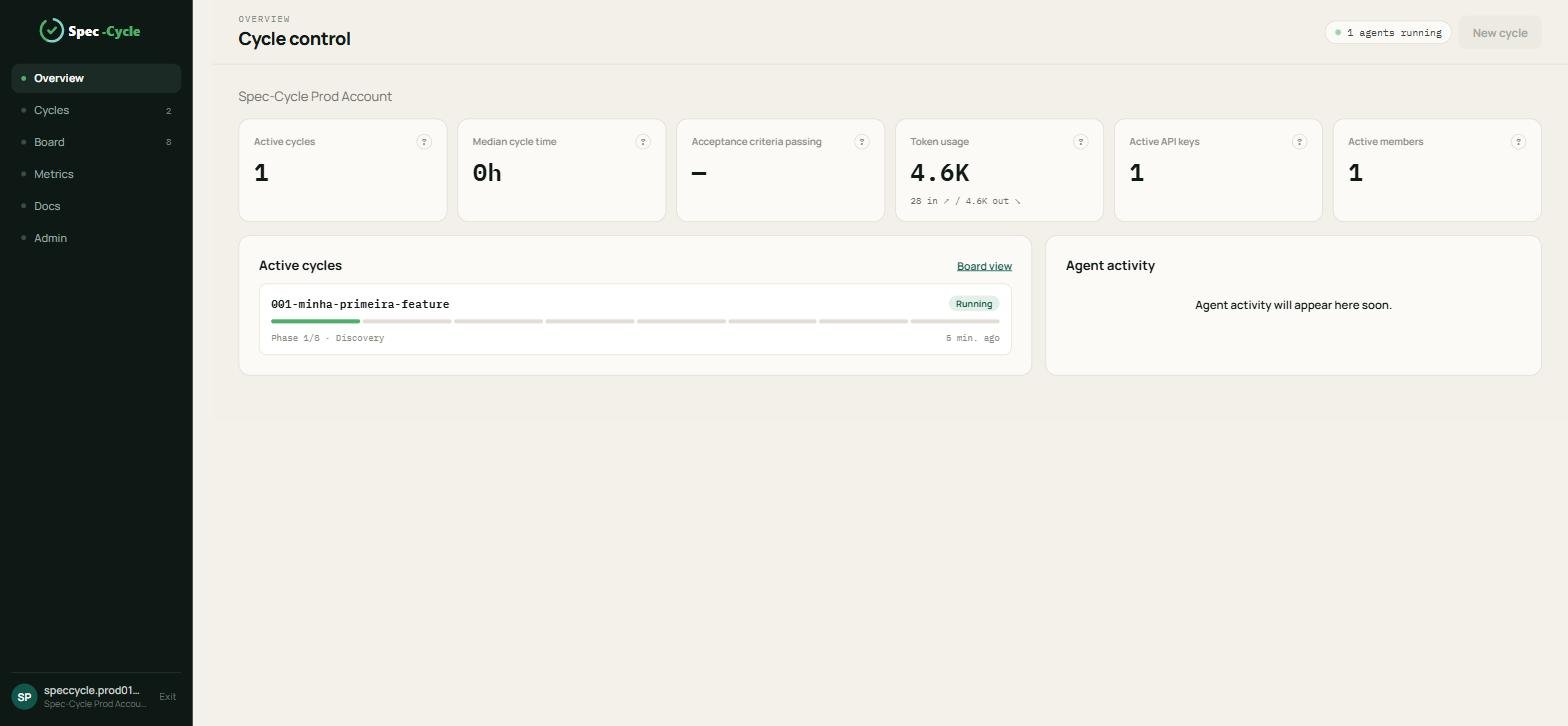
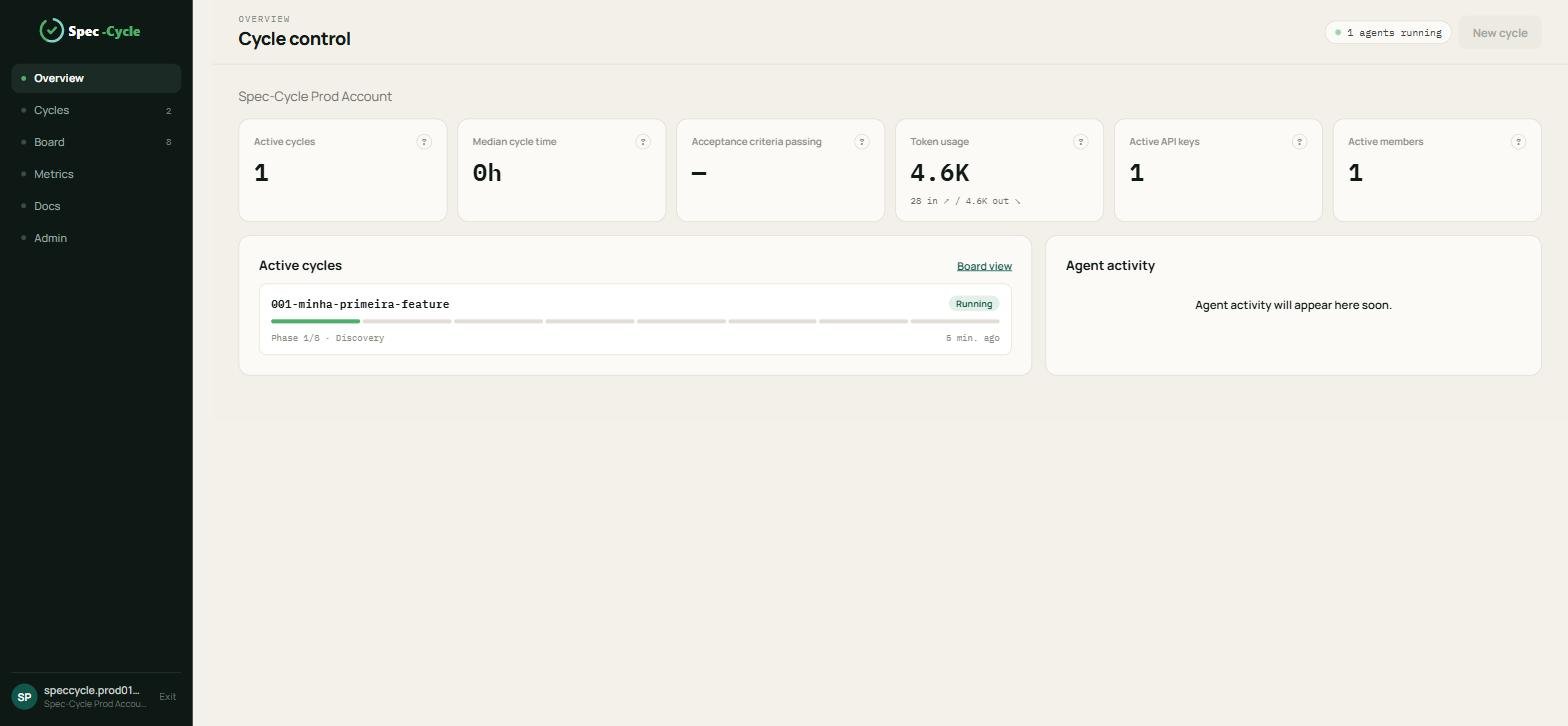
A tela inicial resume a organização em seis indicadores: Active cycles, Median cycle time, Acceptance criteria passing, Token usage, Active API keys e Active members. Abaixo, a lista Active cycles mostra cada volta em andamento com a fase atual.
Cycles
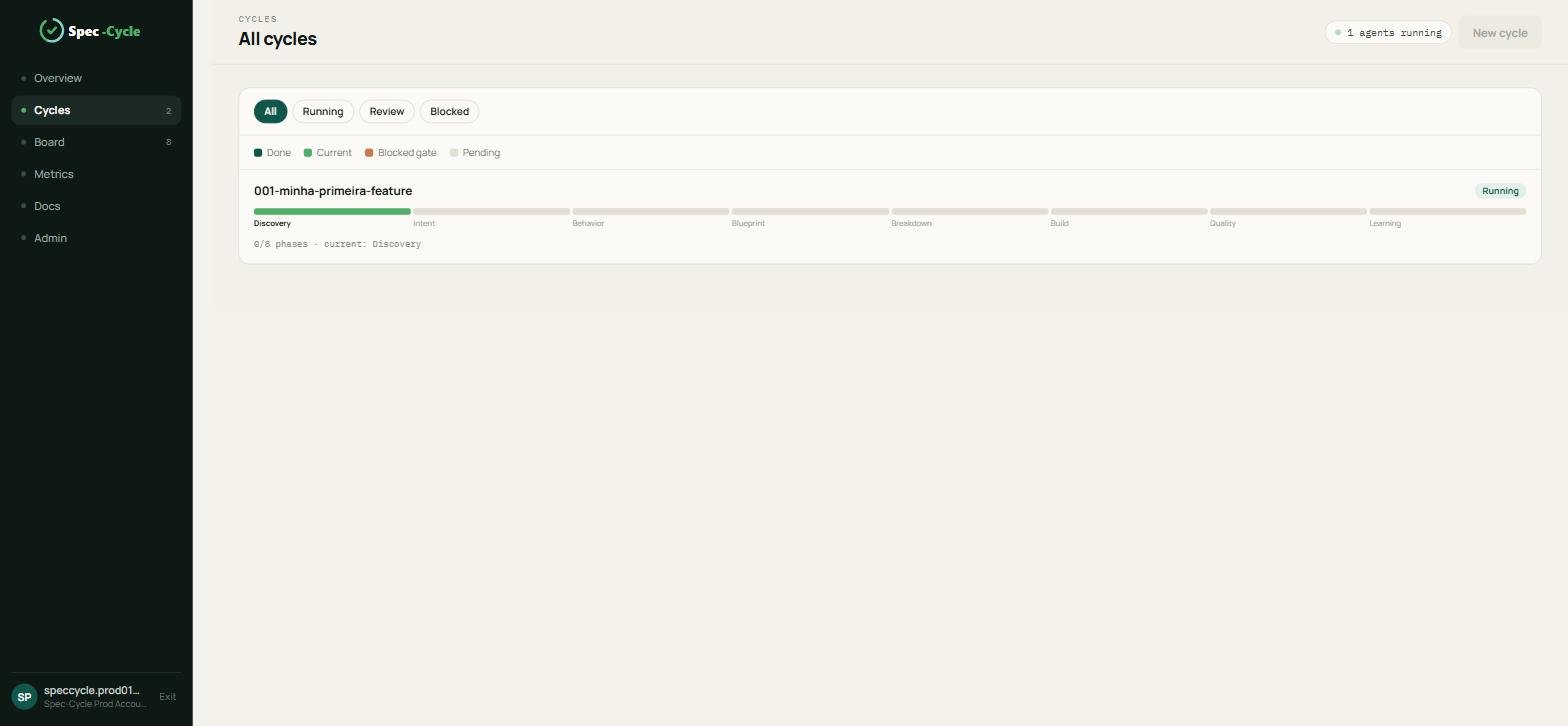
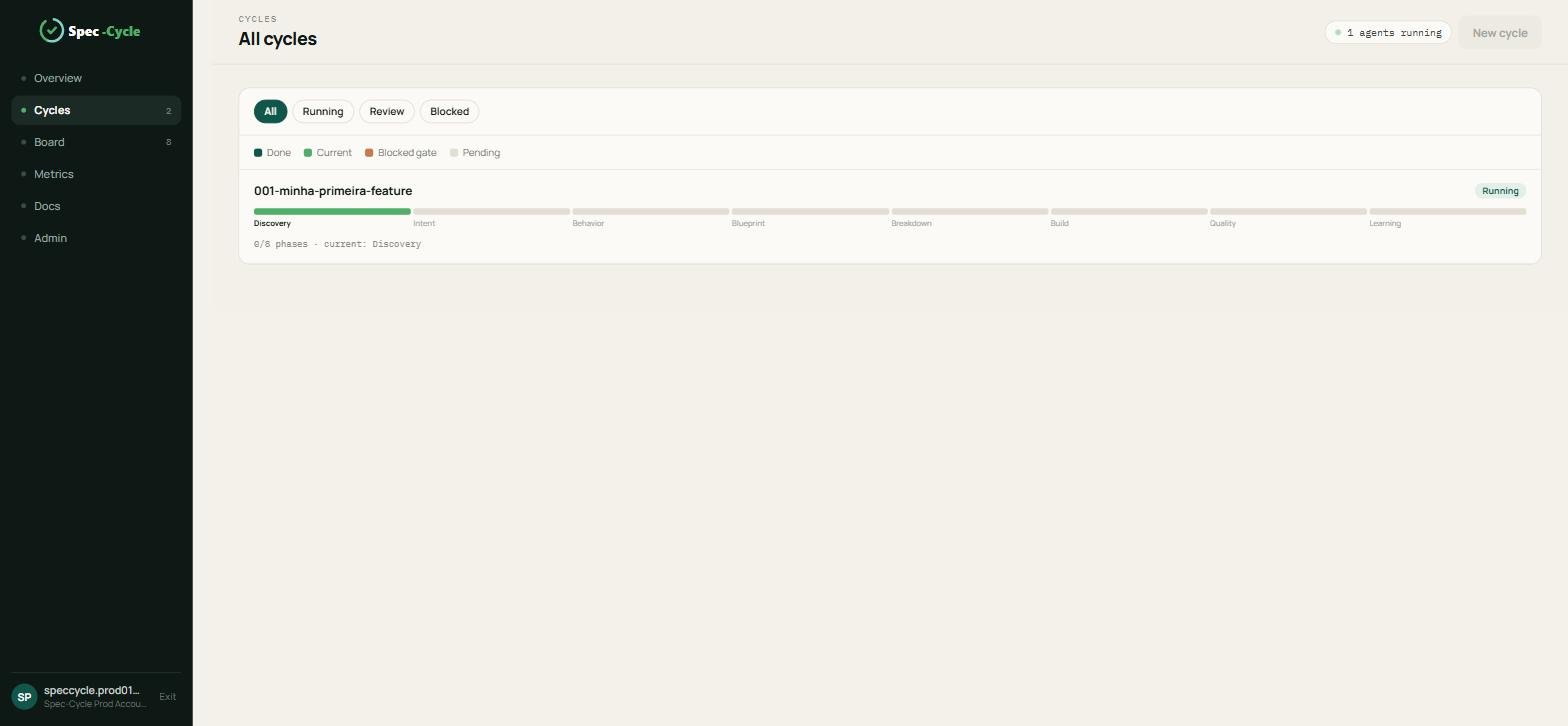
Lista todas as voltas. Os filtros All, Running, Review e Blocked separam pelo estado. Cada volta mostra a barra das oito fases, com a legenda Done, Current, Blocked gate e Pending, além do estado e da fase atual.
Board
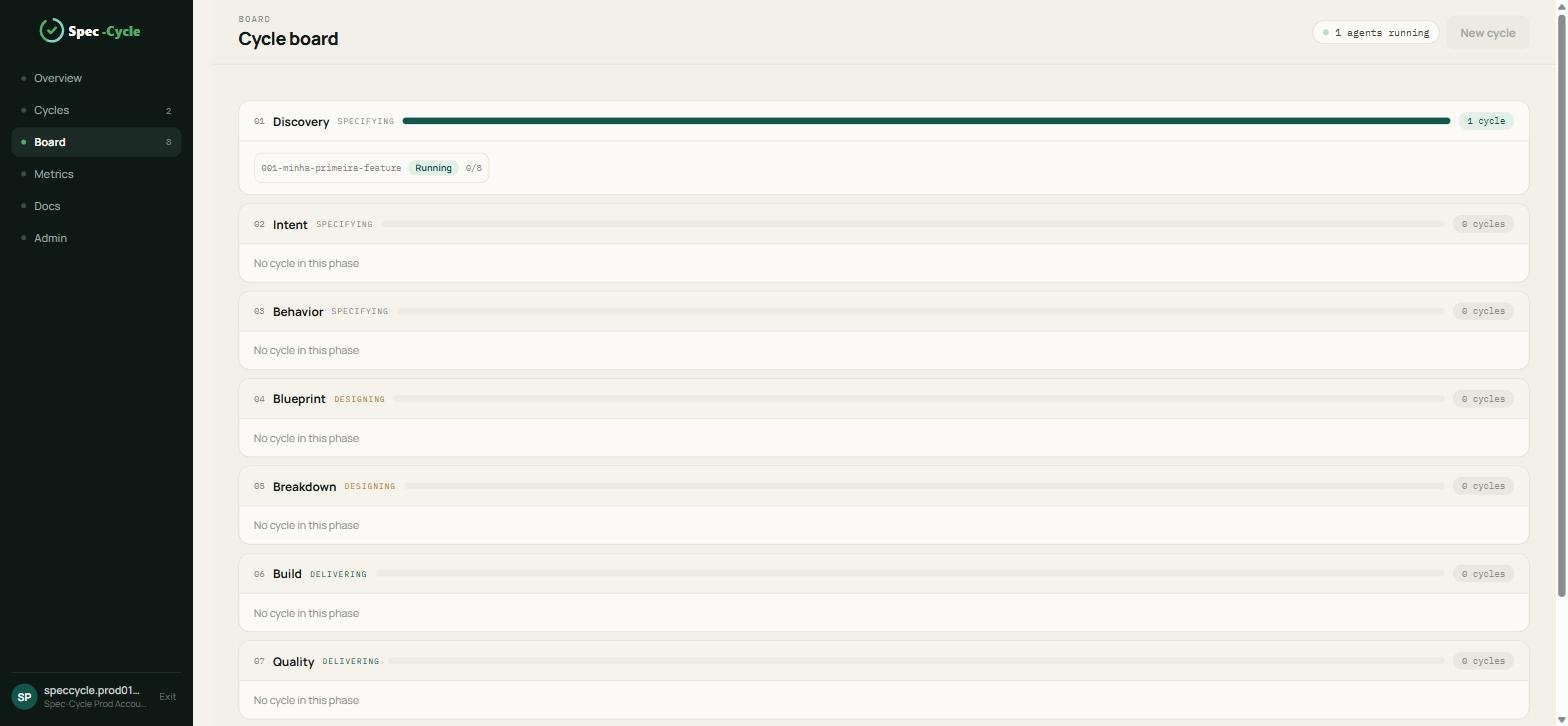
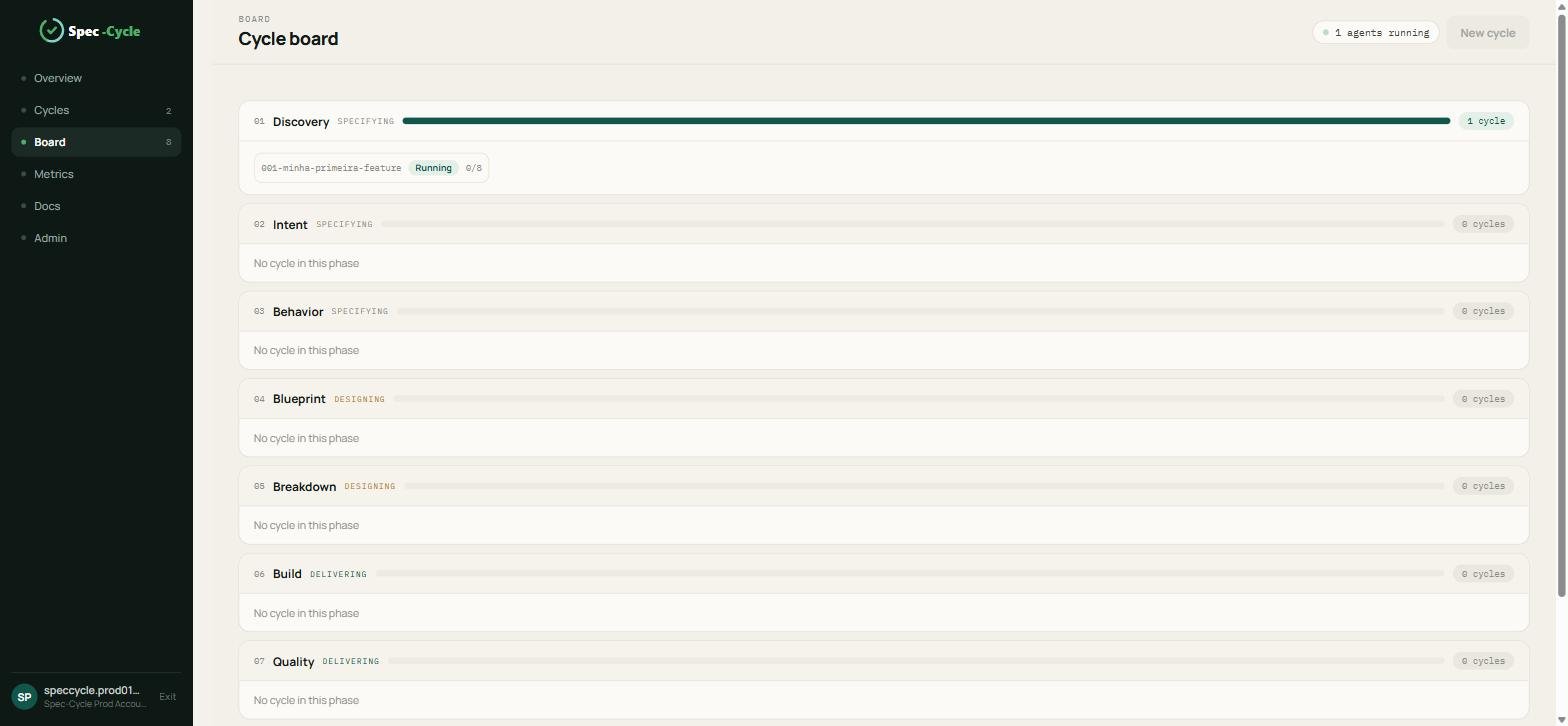
O quadro tem uma faixa por fase, de Discovery a Learning, agrupadas em Specifying, Designing e Delivering. Cada volta aparece na faixa da fase em que está, e faixas sem volta mostram No cycle in this phase.
Metrics
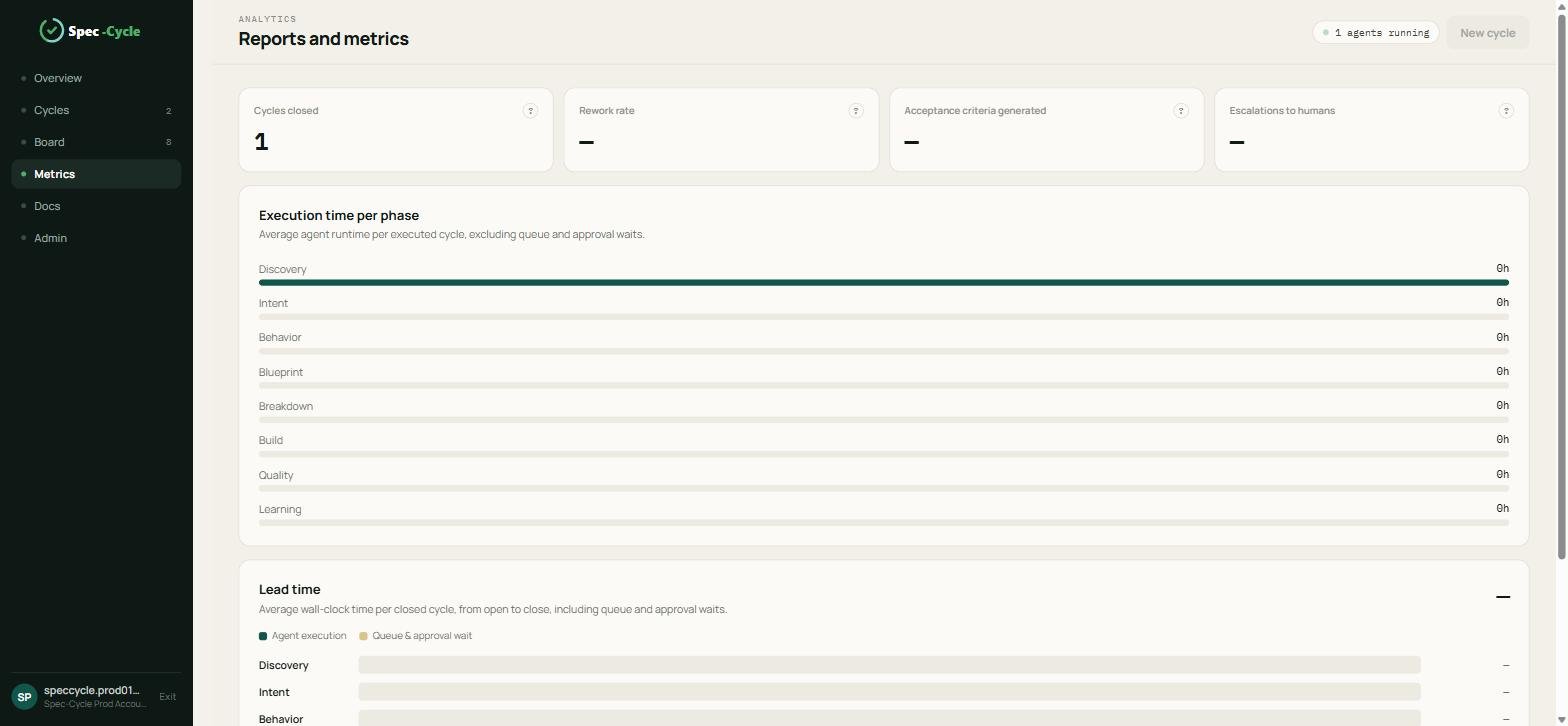
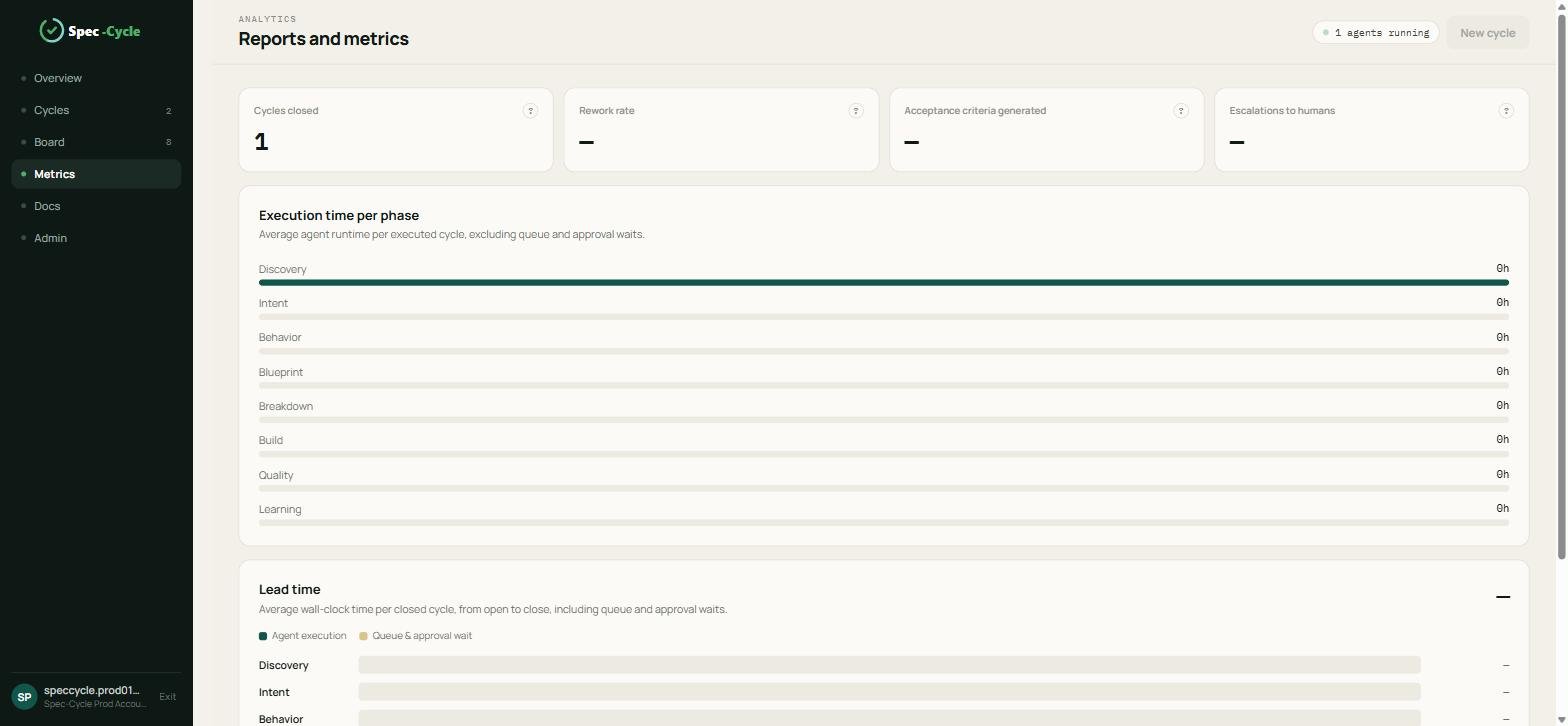
Mostra as voltas fechadas, a taxa de retrabalho, os critérios de aceite gerados e as escalações para pessoas, além do tempo de execução por fase e do lead time. Onde ainda não há dado, a tela mostra um traço.
Convidar pessoas
Client 1.0.0 · verificado em 20/09/2026
Até aqui você trabalhou sozinho. Para trazer o time, convide as pessoas para a sua organização na plataforma. Os papéis definem quais fronteiras de fase cada pessoa pode aprovar.
Ver quem já está
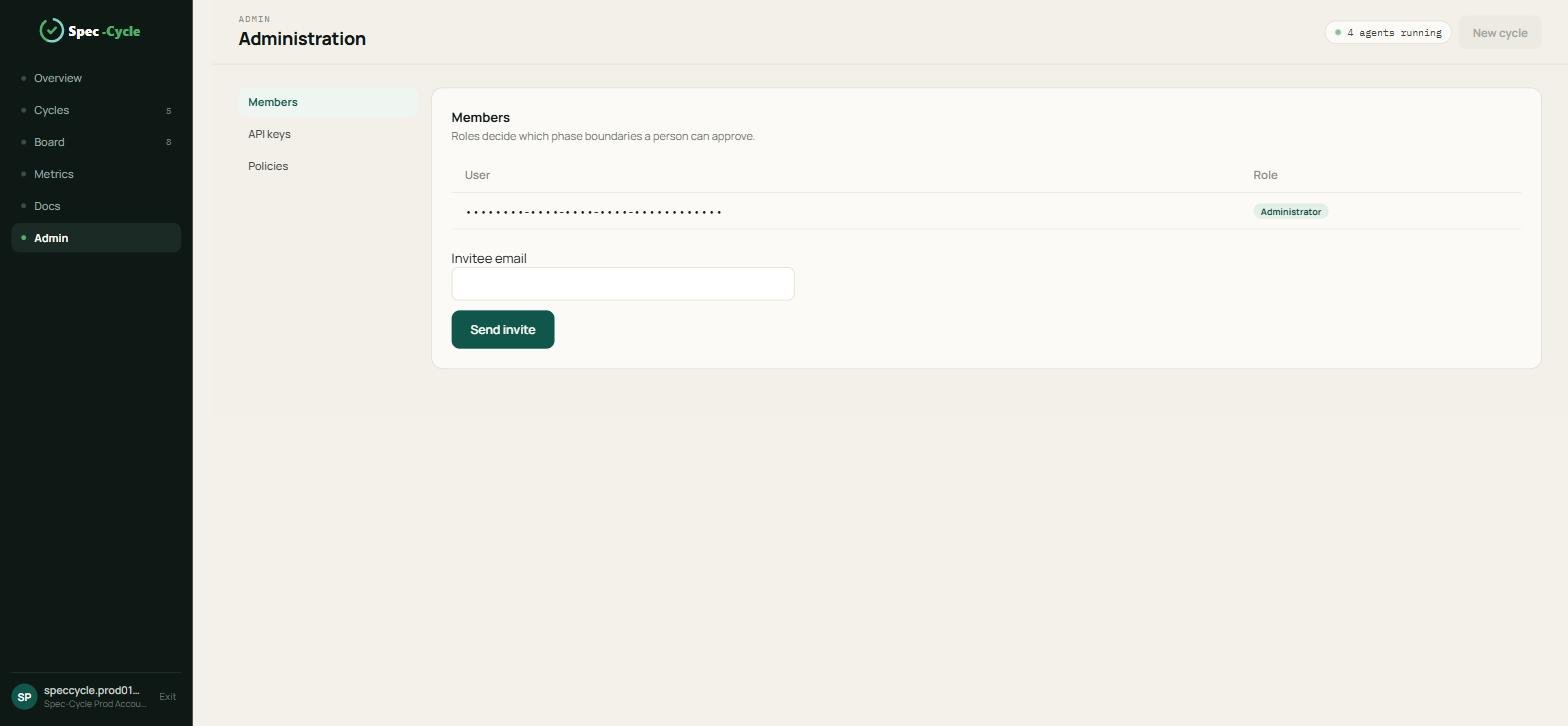
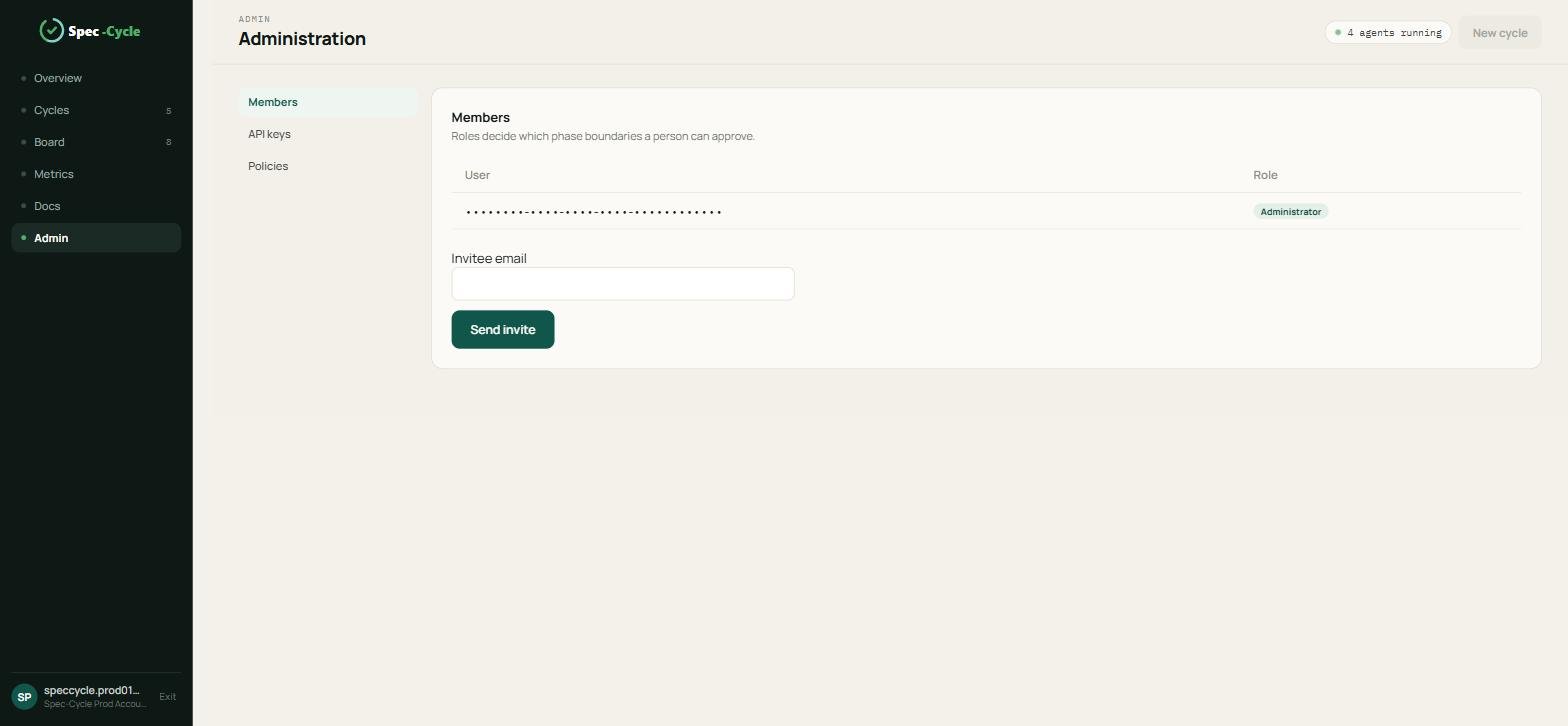
Na plataforma, abra Admin e depois a aba Members. A lista mostra cada pessoa com o identificador e o papel. Quem criou a organização entra como Administrator.
Convidar
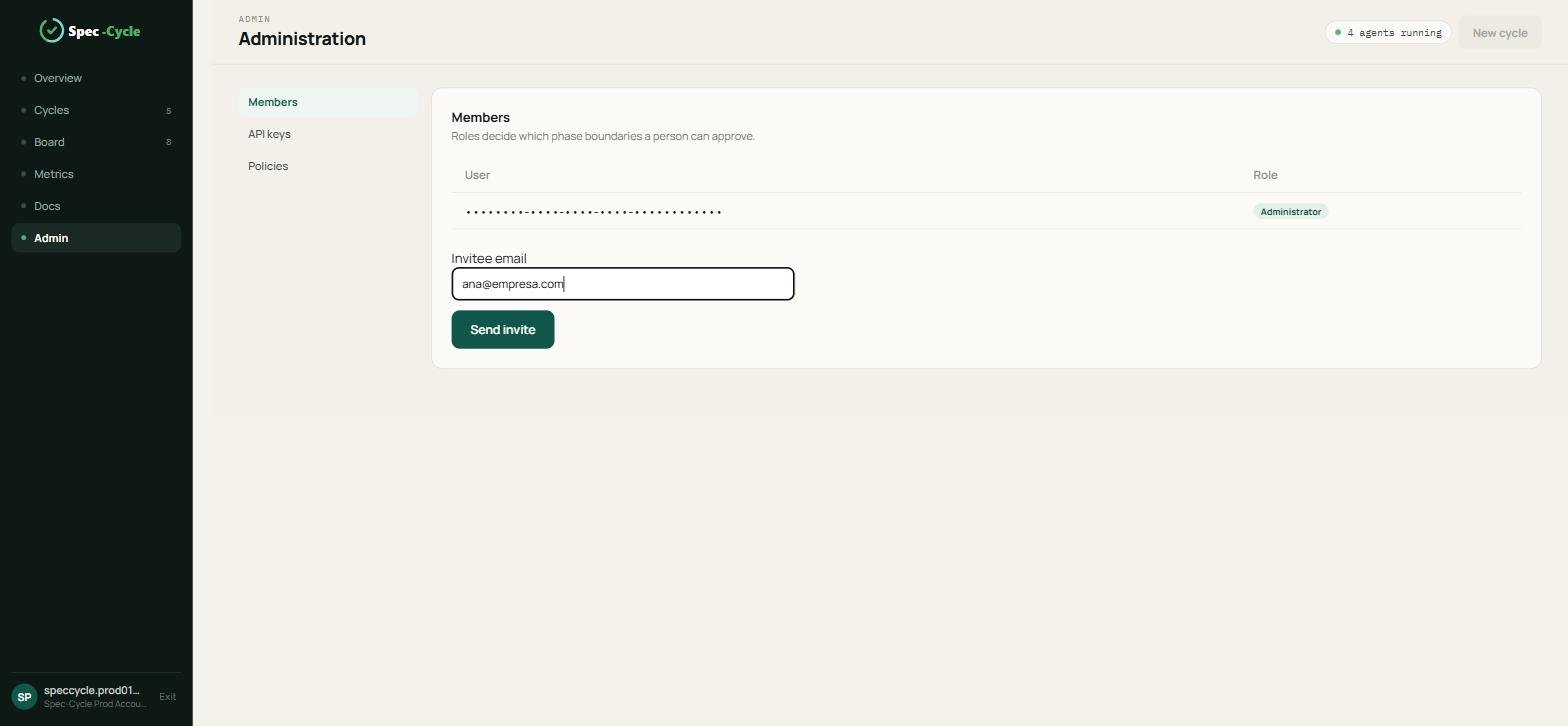
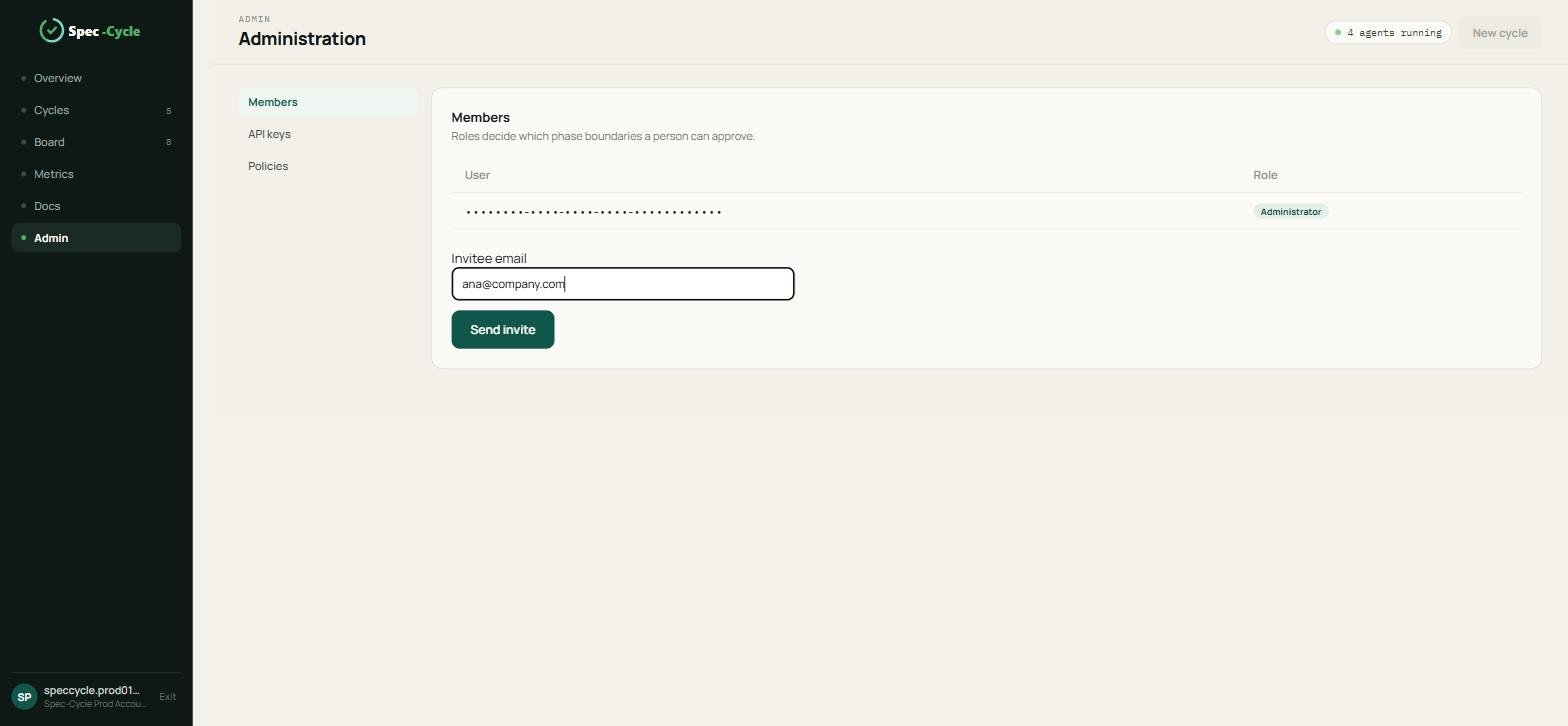
Na aba Members, preencha Invitee email com o e-mail da pessoa.
Clique em Send invite.
A plataforma envia o convite por e-mail para o endereço informado.
Cada pessoa usa a própria chave
O convite dá acesso à plataforma. Para rodar voltas na máquina dela, cada pessoa cria a própria chave, como na seção 3, e conecta o client como na seção 6. Não compartilhe a sua chave: ela é pessoal e, se for revogada, derruba quem estiver usando.
Planos e limites
Client 1.0.0 · verificado em 20/09/2026
Os planos usam uma régua única: ciclos por mês, por tenant. Um ciclo conta quando a volta tem pelo menos uma fase aprovada. Nenhum plano cobra por assento.
Plano
Ciclos por mês
Membros
Free
100
convidados incluídos
Team
900
até 10
Enterprise
ilimitados
ilimitados
Os convidados de uma conta Free usam a chave do tenant de quem convidou e consomem os mesmos 100 ciclos.
O indicador Active members da tela Overview, na seção 13, mostra quantas pessoas contam para o seu plano.
Referência de comandos
Client 1.0.0 · verificado em 20/09/2026
Todos os comandos do client, na versão 1.0.0. O scycle --help lista os comandos e o scycle <comando> --help mostra as opções de cada um.
Projeto e sessão
Comando
O que faz
Opções principais
scycle init [pasta]
Inicializa o Spec-Cycle em um projeto
--here, --llm (claude, antigravity ou both), --workspace
scycle login
Conecta esta máquina à plataforma com a chave da organização
--email, --key
scycle logout
Apaga a chave do cofre e o perfil local
scycle doctor
Verifica o ambiente, a sessão e o envio de eventos
scycle update-version
Atualiza os arquivos do framework no projeto
scycle remove
Remove o Spec-Cycle do repositório
--purge, que remove também a pasta cycles/
Voltas
Comando
O que faz
Opções principais
scycle new <nome>
Cria uma nova volta
--desc, --hotfix
scycle foundation
Inicia o assistente da Foundation
scycle index
Mapeia o repositório e gera o grafo de conhecimento
--model, -m
scycle pr [branch]
Envia a branch da volta e cria ou atualiza a Pull Request
--base, -b, --target, -t
scycle design
Gerencia os protótipos do Claude Design de uma volta, com os subcomandos attach, list e remove
--url, --file, --title
scycle generate-clients
Gera os clients das APIs descritas nos contratos das voltas
Portal, mentor e eventos
Comando
O que faz
Opções principais
scycle start
Inicia o portal local do client
--port, padrão 8473
scycle mentor
Abre o chat interativo com o Mentor do repositório
scycle ask <pergunta>
Faz uma pergunta ao Mentor e encerra
scycle telemetry [ação]
Mostra o envio de eventos das voltas. As ações são status, que é o padrão, flush, que envia o pendente, e retry, que recoloca na fila o que foi recusado
Vários serviços (workspace)
Comando
O que faz
Opções principais
scycle create-service <nome>
Cria um serviço novo no workspace
--stack
scycle import-service <caminho ou URL>
Importa um repositório existente para services/
--name, --local-ref, --symlink, --force
Ajuda e versão
Comando
O que faz
scycle --version
Mostra a versão instalada
scycle --help
Lista os comandos
scycle help
Mostra a documentação completa de uso
Comandos do agente de IA
Digitados no assistente, dentro do projeto:
Comando
Fase
/scycle:foundation
Foundation, a fase zero
/scycle:new
Cria uma volta
/scycle:discovery
01 · Discovery
/scycle:intent
02 · Intent
/scycle:behavior
03 · Behavior
/scycle:blueprint
04 · Blueprint
/scycle:breakdown
05 · Breakdown
/scycle:build
06 · Build
/scycle:quality
07 · Quality
/scycle:learning
08 · Learning
Códigos de saída
Código
Significado
0
O comando terminou bem
1
Erro no comando, por exemplo entrada inválida
3
Sem sessão com a plataforma: conecte o client, como na seção 6
Variáveis de ambiente
Variável
Para que serve
ANTHROPIC_API_KEY
Chave de API da Anthropic, usada quando o Claude Code não está instalado
GITHUB_TOKEN
Token do GitHub para o scycle pr
SPEC_CYCLE_HOME
Pasta do perfil local do client
SPEC_CYCLE_LANG
Idioma das mensagens do client, pt ou en
PYTHONIOENCODING
No Windows, utf-8 evita erros de acentuação na saída
Solução de problemas
Client 1.0.0 · verificado em 20/09/2026
Primeiro passo: rode o doctor
O scycle doctor mostra o estado do ambiente, a sessão com a plataforma, o agente de IA e o envio de eventos. Cada linha aparece como [OK] ou [XX], com a explicação do que falta.
scycle doctor
Rode-o dentro de um projeto já inicializado. Fora de um projeto, o doctor ainda mostra o diagnóstico, mas antes imprime um erro do Python, nenhum projeto Spec-Cycle aqui, e termina com o código 1.
O comando terminou com o código 3
O client não tem sessão com a plataforma, a mensagem é Cliente desconectado da plataforma. Conecte-o de novo, como na seção 6. Se a sessão existia e parou de funcionar, a chave pode ter sido desativada: crie outra, como na seção 3, e conecte de novo.
A fase não começa: a Foundation não foi selada
O Spec-Cycle bloqueia a primeira fase enquanto a Foundation não estiver selada, com a mensagem a Foundation ainda não foi selada. Volte à seção 7 e sele.
O scycle não é reconhecido
O ambiente virtual não está ativo. Ative-o de novo na pasta onde o criou:
.venv\Scripts\Activate.ps1
Se o Activate.ps1 for bloqueado, veja a dica de política de execução na seção 4.
Caracteres estranhos no Windows
Se acentos aparecerem quebrados na saída, force o Python a usar UTF-8 na janela atual:
$env:PYTHONIOENCODING = "utf-8"
A volta não aparece na plataforma
O client envia um evento por fase aprovada. No scycle doctor, a última linha mostra o envio de eventos. Se ela disser que o cliente está desconectado, conecte de novo. Uma volta apenas criada, sem nenhuma fase aprovada, ainda não aparece na plataforma.
O scycle pr não cria a Pull Request
O comando precisa da variável GITHUB_TOKEN, como na seção 12. Sem ela, ele avisa que a variável não está configurada.
Atualizar depois de instalar uma versão nova
Depois de pip install --upgrade speccycle, os arquivos do projeto ainda estão na versão antiga. Rode scycle update-version dentro do projeto.
O comando /scycle:... não aparece no agente de IA
Abra o assistente na pasta do projeto, a que tem .claude/, e confirme com scycle update-version que os comandos estão instalados. O agente também para quando não há sessão com a plataforma.
Remover o Spec-Cycle do projeto
scycle remove
O comando apaga .speccycle/, .claude/, .antigravity/ e .agents/, e lista cada item excluído. A pasta cycles/, com o seu histórico, fica; para removê-la também, use scycle remove --purge.
Ainda com problemas?
Escreva para contato@spec-cycle.com com o resultado do scycle doctor, sem chaves nem tokens, e a mensagem de erro.
Part 1 · From zero to your first delivery
Before you start
Client 1.0.0 · verified on 2026-09-20
This manual is a step-by-step guide. Follow the sections in order and you go from zero to your first Pull Request opened by Spec-Cycle, without jumping back and forth.
The whole path
Check the requirements (this section).
Create and activate your account on the platform.
Create your organization key.
Install the client on your computer.
Set up your project and choose your AI agent.
Connect the client to your organization.
Seal the project's Foundation.
Create your first cycle.
Specify: Discovery, Intent and Behavior.
Design: Blueprint and Breakdown.
Deliver: Build, Quality and Learning.
Open the cycle's Pull Request.
Part 2 comes after that: following your cycles on the platform, inviting people, the plans, the command reference and troubleshooting.
What your machine needs
Python 3.10 or later, with pip. It is what installs and runs the client.
Git. Spec-Cycle keeps each cycle's artifacts in your project's repository.
An AI agent to run the phases: Claude Code (recommended) or an Anthropic API key in the ANTHROPIC_API_KEY environment variable.
To open Pull Requests from the client, in section 12: a GitHub token in the GITHUB_TOKEN variable.
Check what you already have
Each command below prints the installed version. If one is not recognized, install that tool before you continue.
python --version
git --version
claude --version
The last one only works if Claude Code is installed. If you are going to use an Anthropic API key instead, you can skip it.
About this manual
The commands were run on Windows 11 with PowerShell, on client 1.0.0, and the output shown is what actually appeared. On macOS and Linux the scycle commands are the same; only the way you create and activate the Python virtual environment changes, as noted in section 4.
Create and activate your account
Client 1.0.0 · verified on 2026-09-20
The platform is at app.spec-cycle.com. That is where you create your account, create the key that connects the client, and follow your cycles later. Each organization is a tenant: it gathers the people, the keys and the cycles.
1. Create the account
Open app.spec-cycle.com. The first screen is Sign in; click Create account.
Under Account type, choose Individual use, for one repository, or For my company, for an organization with roles.
Fill in Name, Email and Password. The password needs at least 12 characters.
Click Create account.
2. Activate the account
The platform sends a confirmation code to the e-mail you gave. Enter that code to activate the account. Without it the first sign-in does not happen.
3. Sign in
With the account active, sign in through the Sign in to the platform screen, with your e-mail and password. The Forgot my password link leads to password recovery.
In the next section you create, inside the platform, the key that connects the client to your organization.
Create your organization key
Client 1.0.0 · verified on 2026-09-20
The key is what links the client to your organization. Without it the client neither creates nor runs cycles. You create the key now, on the platform, and use it in section 6.
Create it
On the platform, open Admin in the menu and then the API keys tab.
Click Create key.
Fill in Key name with a name you will recognize later, for example my-project.
Fill in Repository scope with the repository this key may work on, for example my-org/my-project.
Choose the scopes. For this manual's path, cycles:run, which runs the cycles, and cycles:read, which reads them, are enough. There are also repo:write and audit:read.
Click Generate key.
Copy the secret
The secret is shown only once, right after creation, with the message Copy this key now — it will not be shown again. Copy it and keep it in a password manager before clicking Done.
Check and revoke
The list shows the name, the end of the key (sk_live_ and the last four characters), the repository and the state.
Disable turns the key off immediately, and anyone connected with it loses the session.
A disabled key can come back with Re-enable or be removed with Delete.
Keep the secret at hand: it is asked for in section 6.
Install the client
Client 1.0.0 · verified on 2026-09-20
The client is distributed on PyPI as the speccycle package and installs the scycle command, which you use in every step from here on. We recommend installing it in a Python virtual environment.
Install
Create the virtual environment, activate it and install the package:
When it finishes, pip confirms the installed packages, with speccycle among them.
Check the version
scycle --version
The output shows Spec-Cycle 1.0.0 and the tagline Specify. Approve. Advance. This manual describes version 1.0.0.
See the help
scycle --help
scycle help
scycle --help lists the commands, one line each. scycle help shows the full usage documentation: the eight phases, the session with the platform, the AI agent setup and a quick start.
Upgrading later
To install a newer version of the client:
pip install --upgrade speccycle
After upgrading the package, run scycle update-version inside each project to update its Spec-Cycle files, as described in section 5.
Set up your project and AI agent
Client 1.0.0 · verified on 2026-09-20
Now you prepare the folder where the cycles will happen and choose the AI agent that runs the phases.
Choose the AI agent
The agents run on your machine, not on the platform. You need one of these two:
Claude Code, recommended. Sessions use the Claude Code instance already signed in on your computer, and no extra key is needed.
An Anthropic API key, in the ANTHROPIC_API_KEY environment variable. It is used when Claude Code is not installed.
Create the project
Create the folder, initialize Git and initialize Spec-Cycle in it:
mkdir my-project
cd my-project
git init
scycle init --here
scycle init --here asks which assistant to configure: 1 Claude Code, 2 Antigravity CLI or 3 both, which is the default. To answer without the question, use --llm claude, --llm antigravity or --llm both. To create the folder and initialize it in one go, give its name instead of --here.
When it finishes, the command reports Spec-Cycle project initialized in <path> and points to the next step, scycle foundation.
What init creates
Folder
What it is for
.speccycle/
Agents, workflows, templates, checkpoints and the project knowledge. project.json holds the identifier and the name.
cycles/
Where each cycle keeps its artifacts.
.claude/
The /scycle:... commands and the agents Claude Code uses. Depending on your choice, also .antigravity/ and .agents/.
init also adds to .gitignore the lines for transient state: event queue, logs and locks.
Connect the AI agent to the project
The /scycle:... commands become available when you open the project in the assistant. With Claude Code, open Claude Code in the project folder and type /scycle: to see the list.
The agent only runs the phases if the machine has a session with the platform, which is what you do in the next section. Without a session it stops and asks you to log in.
Keeping the files up to date
When you install a newer version of the client, update this project's Spec-Cycle files:
scycle update-version
The command updates agents, workflows, templates, checkpoints and the assistant's commands folder, and reports the installed version.
Connect the client to your organization
Client 1.0.0 · verified on 2026-09-20
The client needs a session with the platform to create, change and run cycles. You connect the machine with the key you created in section 3. There are two paths, and the portal is the simpler one.
Through the client portal
The client ships a portal that runs on your machine. Inside the project folder:
scycle start
The portal opens at http://localhost:8473. To use another port, pass --port and the number. While the client is not connected, the portal shows the Connect to your account screen.
Fill in Work email with your account's e-mail and Organization key with the secret you copied in section 3, then click Connect.
The portal is in Portuguese or English according to the PT/EN switcher on the left.
What the connection enables
The screen lists five points. Four describe what the connection does today:
The agents run on this machine. Only the phase results go to the platform.
Your code never leaves the machine. No information about your code or repository is sent, only information about the cycles.
Every decision becomes a commit in your repository, auditable.
The key defines the write scope: which repositories the client may touch and where it may open PRs.
Through the terminal
If you would rather not open the portal:
scycle login
The command asks for your work e-mail and the organization key. The key is not shown while you type. If you prefer, pass both values with the --email and --key options.
When the key is accepted, it answers connected as <your e-mail> (<your organization>) — key stored in the vault.
Check the session
scycle doctor
doctor shows whether the session is active, the account, the organization, the last four characters of the key, the AI agent it detected and the event delivery. Each line appears as [OK] or [XX].
The key is stored in the operating system vault, DPAPI on Windows, and a local profile lives in the user configuration folder, outside any repository. The SPEC_CYCLE_HOME variable changes that profile's folder.
Without a session, exit code 3
Commands that create, change or run something end with exit code 3 and the message Client disconnected from the platform. Run scycle login or connect through the dashboard. The same applies to the /scycle:... commands in the AI agent, which stop before doing anything.
Ending the session
scycle logout
logout answers session ended: local key and profile deleted and erases the key from the vault and the local profile on this machine. It does not revoke the key on the platform; for that use Disable, in section 3.
Seal the Foundation
Client 1.0.0 · verified on 2026-09-20
The Foundation is phase zero: the stack decisions and the principles that hold for the whole project. It runs once per project, before the first cycle.
Why it matters
Everything the agents do afterwards goes through it:
Every agent reads the Foundation before deciding anything. It is what says which language to write in, which architecture to follow and how to test.
It records non-negotiable principles. In the example below, the Default TDD Combo requires every behavior test to be written before the implementation code, in the Red-Green-Refactor flow.
It fixes the directory tree that Build will respect.
Until it is sealed, the first phase does not start. If you try, Spec-Cycle blocks the phase and asks you to seal the Foundation first.
Without a Foundation, every cycle would restart those decisions from scratch, and two cycles of the same project could come out with different architectures.
Sealing it from the terminal
scycle foundation
The wizard first asks for the method:
1 Express, quick, for single-repository projects. Two questions: the main language, among Python, TypeScript / JavaScript, Go or other, and the architecture, among Hexagonal / Clean, Modular Monolith or MVC / stack default.
2 Complete, step by step, for microservices, cloud and infrastructure as code.
At the end it confirms that the base configuration was created and writes the result to .speccycle/knowledge/foundation.md.
Sealing it from the portal
In the client portal, the Foundation area shows the project's current state: the recorded answers, the generated principles and the directory tree.
Three buttons, at the top:
Button
What it does
Foundation Agent
Lets the AI agent run the conversation and fill in the answers.
Edit answers
Opens the same wizard questions so you can change an answer.
Edit file manually
Opens foundation.md for direct editing.
The Custom instructions field is where your own conventions, style preferences, approved packages and security rules go — the ones every agent must follow.
Giving the agents repository context
With the Foundation sealed, map the repository into the knowledge graph:
scycle index
The command asks which AI model to use for the mapping, among Sonnet, Haiku, Opus, Fable and Gemini. To choose without the question, use --model, for example --model sonnet; without an interactive terminal it uses Sonnet. When it finishes, it reports that the Code Knowledge Graph was updated, and the result is in .speccycle/knowledge/.
The graph is what the portal shows under Repository context, and it is where the agents learn what already exists in your code.
Create your first cycle
Client 1.0.0 · verified on 2026-09-20
A cycle is the complete lifecycle of one feature, from the problem to the lesson learned. It goes through eight phases, and none starts before the previous one is approved.
In this manual the example cycle is a contact button on the home page.
Creating it from the terminal
scycle new "Contact button on the home page"
The command answers new cycle created: cycles/001-contact-button-on-the-home-page and points to Discovery as the next step: /scycle:discovery in your AI agent.
Two useful options:
Option
What it is for
--hotfix
Creates a quick fix, with fewer steps than a full cycle.
--desc
Records a description with the cycle, sent to the platform with the first event.
Creating it from the portal
In the portal, the Active Cycle area has the name field, the Quick Fix (Hotfix) checkbox and the New cycle button. The Add description link opens the description field.
At the top is the Model selector, which chooses the AI model the agents will use on this machine. The example shows Sonnet 5, with the provider and the context size next to it.
What you see next
The cycle appears as a card, with the name, the number, the date and a counter of completed phases. Below it, one row per phase, always in the same order:
Column
What it is
Number and name
The phase, from 01 Discovery to 08 Learning, and the agent that runs it.
Command
The /scycle:... command that starts the phase in the AI agent.
Run
Starts the phase from the portal, without leaving for the assistant.
Artifact
The file the phase produces, for example discovery.md.
Status
Next on the one that can start, Waiting on the ones that depend on another, Done on the one that finished.
Only the current phase has Run enabled. That is how Spec-Cycle enforces one phase at a time.
In the next three sections you go through the eight phases.
Specify: Discovery, Intent and Behavior
Client 1.0.0 · verified on 2026-09-20
The first three phases answer what will be done and why, without deciding technology. This is where Spec-Cycle avoids the biggest source of rework: starting to code before the problem is clear.
The loop that repeats in every phase
All eight phases follow the same loop:
Start it. Click Run on the phase row, in the portal, or type the /scycle:... command in the AI agent, inside the project.
Talk. The agent asks questions when the request is ambiguous and stops until you answer. Answering poorly here is expensive later.
Read the artifact. The phase writes a file in the cycle folder. That file, not the chat, is what counts.
Approve. If the artifact is good, approve it. If not, ask for changes and run it again.
How to approve
In the portal, when the phase finishes, the status becomes Done and an Approve phase button appears on the row, next to Run. Click it.
Once approved, the row becomes Approved and the next phase is unlocked, with Run enabled.
If you prefer the terminal, use python -m speccycle.gates approve <phase> inside the project.
Why approving matters
Approval is not bureaucracy, it is the core mechanism of Spec-Cycle:
It unlocks the next phase. Without it, the next phase's Run stays off and the AI agent refuses to move on.
It is your control point. The agent proposes; you decide. Approving means "this document represents what I want".
It is recorded. The approval is written to the cycle folder, with who approved and when, and becomes a commit in your repository. Months later you can answer why the project took a given path.
It feeds the platform. Every approved phase becomes an event, and that is where the progress and metrics in section 13 come from.
01 · Discovery
What it is: understanding the problem, before any solution. The agent investigates the context, researches and brings back what it found.
How to start it:/scycle:discovery or Run on row 01.
Expected result: the file discovery.md in the cycle folder, with the problem, the context and constraints, the research, the risks and unknowns, and a recommendation.
Before approving, check: is the described problem really yours? Are the constraints right? Does the recommendation make sense? If the agent asked something and you answered loosely, it shows up here.
02 · Intent
What it is: what we want and why, with no stack decisions. Intent turns the problem into goals and criteria, without choosing a library, a database or an architecture.
How to start it:/scycle:intent or Run on row 02.
Expected result: the file intent.md, with the goals, the success criteria and what is out of scope.
Before approving, check: did any technical decision slip in? If so, it is in the wrong phase and should come out. Is what was left out of scope explicit?
03 · Behavior
What it is: the behaviors written in Gherkin. This is the contract the Quality phase will execute: each scenario becomes a check.
How to start it:/scycle:behavior or Run on row 03.
Expected result: the file behaviors.md, with the scenarios in Given / When / Then.
Before approving, check: did every Intent criterion become a scenario? Do the scenarios describe observable behavior rather than implementation? A scenario you would not know how to verify by hand will not be verifiable later either.
Design: Blueprint and Breakdown
Client 1.0.0 · verified on 2026-09-20
With the problem clear and the behaviors written, the next two phases decide how to build and in what order. The loop is the same as the previous section: run, read the artifact, approve.
04 · Blueprint
What it is: the architecture of the solution. It is the first phase that decides technology, and it decides within what the Foundation already sealed.
How to start it:/scycle:blueprint or Run on row 04.
Expected result: the file blueprint.md, with the architecture, the data model, the contracts between the parts and the decisions recorded as ADRs. An ADR is an architecture decision written down with the alternative considered and the reason for the choice, so that months later nobody has to guess.
Before approving, check: does the architecture respect the Foundation? Did every relevant decision become an ADR, with its reason? Do the contracts cover everything the behaviors require? A wrong assumption here spreads through the whole Build, and fixing it later costs far more.
05 · Breakdown
What it is: breaking the Blueprint into deliverable increments, each with its own acceptance criteria. An increment is a piece that delivers value on its own and can be verified.
How to start it:/scycle:breakdown or Run on row 05.
Expected result: the file breakdown.md and one file per increment in the cycle folder, each with its goal, acceptance criteria and the scenarios it covers.
Before approving, check: does each increment deliver something verifiable on its own? Are the acceptance criteria objective, the kind you answer with yes or no? Were all the Behavior scenarios distributed among the increments, with none left over?
Deliver: Build, Quality and Learning
Client 1.0.0 · verified on 2026-09-20
The last three phases build, verify and close the cycle. The loop stays the same: run, read the artifact, approve.
06 · Build
What it is: the construction, increment by increment, guided by the Behavior scenarios. The agent writes real code in your repository, following the TDD sealed in the Foundation: first the failing test, then the code that makes it pass, then the cleanup.
How to start it:/scycle:build or Run on row 06.
Expected result: the code in the repository, the matching tests and the file build-log.md, which records what was done in each increment, with the deviations from the plan and the reason for them.
Before approving, check: do the tests exist and pass? Does what was built match the Breakdown? Does the log record the deviations instead of hiding them? Was any test disabled to make the suite green?
07 · Quality
What it is: the independent verification. Quality executes the scenarios written in the Behavior phase, checks the gates and does the code review. It does not write the feature; it tries to fail what Build delivered.
How to start it:/scycle:quality or Run on row 07.
Expected result: the file quality-report.md, with the result of each scenario, what passed, what failed and the review findings.
Before approving, check: were all the Behavior scenarios executed? Was a failing scenario fixed, or recorded with an explicit justification? Approval here is what separates "the agent said it is done" from "it is verified".
08 · Learning
What it is: closing the cycle. The agent records what worked, what went wrong and what the next cycle should do differently.
How to start it:/scycle:learning or Run on row 08.
Expected result: the file learnings.md, with the lessons from the cycle.
Before approving, check: are the lessons specific and actionable, the kind that changes a future decision? A vague lesson helps nobody. The agents read this file in later cycles, so what you approve here comes back as context.
With phase 08 approved, the card counter reads 8 of 8 and the cycle is complete.
Open the cycle's Pull Request
Client 1.0.0 · verified on 2026-09-20
With the cycle complete, the code and the artifacts are in your repository, on their own branch. The last step is to send them for review.
Prepare the GitHub token
The command needs a GitHub token with permission to create Pull Requests in the repository. Set it in the current terminal window:
$env:GITHUB_TOKEN = "<your-github-token>"
Replace the text between < and > with your token.
Open the PR
scycle pr --base dev
The command pushes the cycle branch and creates, or updates, the Pull Request on GitHub, and reports the result. Without the GITHUB_TOKEN variable, it stops and warns that it is not configured.
--base chooses the target branch. Without that option, the client uses the github.pr_base key from .speccycle/project.json and, without that key, the remote repository's default branch.
What goes into the PR
The PR carries what the cycle produced: the code, the tests and each phase's artifacts, with the approvals recorded. Whoever reviews it does not only see the code diff, they also see the Discovery that justified the problem, the behaviors that served as the contract and the Quality report.
Your first cycle is delivered. Part 2 shows what to do from here.
Part 2 · After your first cycle
Follow along on the platform
Client 1.0.0 · verified on 2026-09-20
The client portal shows the project on your machine. The platform, at app.spec-cycle.com, shows the whole organization: every cycle, from everyone, with progress and metrics.
Every approved phase becomes an event sent by the client. That is why a cycle only appears here after you start working on it.
Overview
The home screen sums up the organization in six indicators: Active cycles, Median cycle time, Acceptance criteria passing, Token usage, Active API keys and Active members. Below, the Active cycles list shows each running cycle with its current phase.
Cycles
Lists every cycle. The All, Running, Review and Blocked filters split them by state. Each cycle shows the bar of the eight phases, with the Done, Current, Blocked gate and Pending legend, plus the state and the current phase.
Board
The board has one lane per phase, from Discovery to Learning, grouped into Specifying, Designing and Delivering. Each cycle appears in the lane of the phase it is in, and lanes without cycles show No cycle in this phase.
Metrics
Shows the closed cycles, the rework rate, the acceptance criteria generated and the escalations to people, plus the execution time per phase and the lead time. Where there is no data yet, the screen shows a dash.
Invite people
Client 1.0.0 · verified on 2026-09-20
So far you have worked alone. To bring in the team, invite people to your organization on the platform. Roles decide which phase boundaries each person can approve.
See who is already there
On the platform, open Admin and then the Members tab. The list shows each person with an identifier and a role. Whoever created the organization joins as Administrator.
Invite
In the Members tab, fill in Invitee email with the person's e-mail.
Click Send invite.
The platform sends the invitation by e-mail to the address you gave.
Everyone uses their own key
The invitation grants access to the platform. To run cycles on their own machine, each person creates their own key, as in section 3, and connects the client as in section 6. Do not share your key: it is personal and, if revoked, it disconnects whoever is using it.
Plans and limits
Client 1.0.0 · verified on 2026-09-20
The plans use a single yardstick: cycles per month, per tenant. A cycle counts when it has at least one approved phase. No plan charges per seat.
Plan
Cycles per month
Members
Free
100
guests included
Team
900
up to 10
Enterprise
unlimited
unlimited
Guests on a Free account use the key of the tenant that invited them and consume the same 100 cycles.
The Active members indicator on the Overview screen, in section 13, shows how many people count towards your plan.
Command reference
Client 1.0.0 · verified on 2026-09-20
Every client command, in version 1.0.0. scycle --help lists the commands and scycle <command> --help shows each command's options.
Project and session
Command
What it does
Main options
scycle init [folder]
Initializes Spec-Cycle in a project
--here, --llm (claude, antigravity or both), --workspace
scycle login
Connects this machine to the platform with the organization key
--email, --key
scycle logout
Erases the key from the vault and the local profile
scycle doctor
Checks the environment, the session and the event delivery
scycle update-version
Updates the framework files in the project
scycle remove
Removes Spec-Cycle from the repository
--purge, which also removes the cycles/ folder
Cycles
Command
What it does
Main options
scycle new <name>
Creates a new cycle
--desc, --hotfix
scycle foundation
Starts the Foundation wizard
scycle index
Maps the repository and generates the knowledge graph
--model, -m
scycle pr [branch]
Pushes the cycle branch and creates or updates the Pull Request
--base, -b, --target, -t
scycle design
Manages a cycle's Claude Design prototypes, with the attach, list and remove subcommands
--url, --file, --title
scycle generate-clients
Generates the clients of the APIs described in the cycle contracts
Portal, mentor and events
Command
What it does
Main options
scycle start
Starts the client's local portal
--port, default 8473
scycle mentor
Opens the interactive chat with the repository Mentor
scycle ask <question>
Asks the Mentor a question and exits
scycle telemetry [action]
Shows the delivery of cycle events. The actions are status, the default, flush, which sends what is pending, and retry, which requeues what was rejected
Multiple services (workspace)
Command
What it does
Main options
scycle create-service <name>
Creates a new service in the workspace
--stack
scycle import-service <path or URL>
Imports an existing repository into services/
--name, --local-ref, --symlink, --force
Help and version
Command
What it does
scycle --version
Shows the installed version
scycle --help
Lists the commands
scycle help
Shows the full usage documentation
AI agent commands
Typed in the assistant, inside the project:
Command
Phase
/scycle:foundation
Foundation, phase zero
/scycle:new
Creates a cycle
/scycle:discovery
01 · Discovery
/scycle:intent
02 · Intent
/scycle:behavior
03 · Behavior
/scycle:blueprint
04 · Blueprint
/scycle:breakdown
05 · Breakdown
/scycle:build
06 · Build
/scycle:quality
07 · Quality
/scycle:learning
08 · Learning
Exit codes
Code
Meaning
0
The command finished fine
1
Error in the command, for example invalid input
3
No session with the platform: connect the client, as in section 6
Environment variables
Variable
What it is for
ANTHROPIC_API_KEY
Anthropic API key, used when Claude Code is not installed
GITHUB_TOKEN
GitHub token for scycle pr
SPEC_CYCLE_HOME
Folder of the client's local profile
SPEC_CYCLE_LANG
Language of the client's messages, pt or en
PYTHONIOENCODING
On Windows, utf-8 avoids accent errors in the output
Troubleshooting
Client 1.0.0 · verified on 2026-09-20
First step: run doctor
scycle doctor shows the status of the environment, the session with the platform, the AI agent and the event delivery. Each line appears as [OK] or [XX], with an explanation of what is missing.
scycle doctor
Run it inside an initialized project. Outside a project, doctor still shows the diagnosis, but first prints a Python error, no Spec-Cycle project here. run scycle init first., and ends with exit code 1.
The command ended with exit code 3
The client has no session with the platform: Client disconnected from the platform. Connect it again, as in section 6. If the session existed and stopped working, the key may have been disabled: create another one, as in section 3, and connect again.
The phase does not start: the Foundation has not been sealed
Spec-Cycle blocks the first phase while the Foundation is not sealed. The message is in Portuguese even in the English client: Gate do Spec-Cycle: a Foundation ainda não foi selada. Go back to section 7 and seal it.
scycle is not recognized
The virtual environment is not active. Activate it again in the folder where you created it:
.venv\Scripts\Activate.ps1
If Activate.ps1 is blocked, see the execution policy tip in section 4.
Strange characters on Windows
If accents look broken in the output, force Python to use UTF-8 in the current window:
$env:PYTHONIOENCODING = "utf-8"
The cycle does not appear on the platform
The client sends an event per approved phase. In scycle doctor, the last line shows the event delivery. If it says the client is disconnected, connect it again. A cycle that was only created, with no phase approved yet, does not appear on the platform.
scycle pr does not create the Pull Request
The command needs the GITHUB_TOKEN variable, as in section 12. Without it, it reports that the variable is not configured.
Update after installing a new version
After pip install --upgrade speccycle, the project files are still on the old version. Run scycle update-version inside the project.
The /scycle:... command does not show up in the AI agent
Open the assistant in the project folder, the one that has .claude/, and confirm with scycle update-version that the commands are installed. The agent also stops when there is no session with the platform.
Remove Spec-Cycle from the project
scycle remove
The command deletes .speccycle/, .claude/, .antigravity/ and .agents/, and lists each deleted item. The cycles/ folder, with your history, stays; to remove it too, use scycle remove --purge.
Still having trouble?
Write to contato@spec-cycle.com with the output of scycle doctor, without keys or tokens, and the error message.